Adding new DataNode to the cluster using Ambari

I am going to add one DataNode to my existing cluster. This is going to be done in Ambari. My Hadoop ditribution is Hortonworks.

Work on the node

Adding new node to the cluster affects all the existing nodes – they should know about the new node and the new node should know about the existing nodes. In this case, I am using /etc/hosts to keep nodes “acquainted” with each other.

My only source of truth for /etc/hosts is on Ambari server. From there I run scripts that update the /etc/hosts file on other nodes.

  1.  Open the file.
    sudo vi /etc/hosts
  2. Add a new line to it and save the file. In Ubuntu, this takes immediate effect.

    10.0.XXX.XX     t-datanode02.domain       t-datanode02

  3. Running the script to update the cluster.
    As per now, I have one line per node in the script, as shown below. it is on my to-do list to create a loop that would read from original /etc/hosts and update the cluster.
    So the following line is added to the existing lines in the script.

    cat /etc/hosts | ssh ubuntu@t-datanode02 -i /home/ubuntu/.ssh/key "sudo sh -c 'cat > /etc/hosts'";
  4. Updating the system on the new node
    I tend to run this from Ambari. If multiple nodes are added, I run a script.

    ssh -i /home/ubuntu/.ssh/key ubuntu@t-datanode02 'sudo apt-get update -y && sudo apt-get upgrade -y'
  5. Adjusting maximum number of open files and processes.
    Since this is a DataNode we are adding, number of open files and processes has to be adjusted.
    Open the limits.conf file on the node.

    sudo vi /etc/security/limits.conf
  6. Add the following two lines at the end of the file

    *                –       nofile          32768
    *                –       nproc           65536

  7. Save the file, exit the CLI and log in again.
  8. The changes can be seen by typing the following command.
    ulimit -a

    Output is the following:

    core file size          (blocks, -c) 0
    data seg size           (kbytes, -d) unlimited
    scheduling priority             (-e) 0
    file size               (blocks, -f) unlimited
    pending signals                 (-i) 257202
    max locked memory       (kbytes, -l) 64
    max memory size         (kbytes, -m) unlimited
    open files                      (-n) 32768
    pipe size            (512 bytes, -p) 8
    POSIX message queues     (bytes, -q) 819200
    real-time priority              (-r) 0
    stack size              (kbytes, -s) 8192
    cpu time               (seconds, -t) unlimited
    max user processes              (-u) 65536
    virtual memory          (kbytes, -v) unlimited
    file locks                      (-x) unlimited

Work from Ambari

  1. Log in to Ambari, click on Hosts and choose Add New Hosts from the Actions menu.
    ambari-add-new-host
  2. In step Install Options, add the node that is soon to become a DataNode.
    Hortonworks warns against using anything than FQDN as Target Hosts!

    If multiple nodes are added in this step, they can be written one per line. If there is a numerical pattern in the names of the nodes , Pattern Expressions can be used.
    Example nodes:
    datanode01
    datanode02
    datanode03
    Writing this in one line with Pattern Expressions:
    datanode[01-03]
    Worry not, Ambari will ask you to confirm the host names if you have used Pattern Expressions:ambari-pattern-expression-example
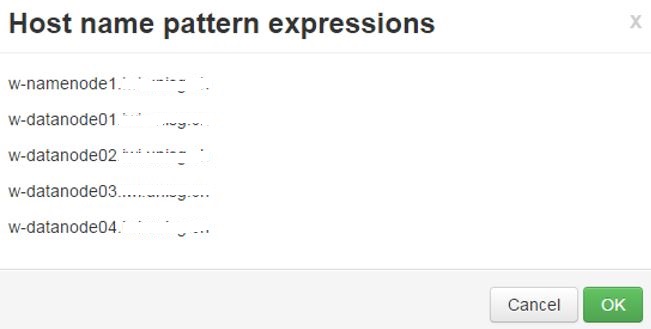
    (This is a print screen from one of my earlier cluster installations)Private key has to be defined and SSH User Account is by default root, but that will not work. In my case, I am using Ubuntu, so the user is ubuntu.
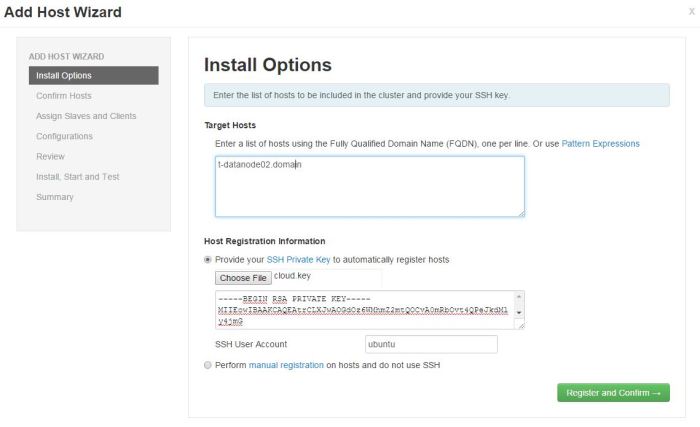
    ambari-new-host-install-options
    Now I can click Register and Confirm.
  3. In the Confirm Hosts step, Ambari server connects to the new node using SSH, it registers the new node to the cluster and installs Ambari Agent in order to keep control over it.Registering phase:

    ambari-new-host-registering-status
    New node has been registered successfully:

    ambari-new-host-success-status
    If anything else but this message is shown, click on the link to check the results. The list of checks performed is shown and everything should be in order before continuing (Earlier versions had a problem if ntpd or snappy was not installed/started, for example).

    ambari-new-host-check-passed
    All good in the hood here so I can continue with the installation.
  4. In step Assign Slaves and Clients I define my node to be a DataNode and has a NodeManager installed as well (if you are running Apache Storm, Supervisor is also an option).

    ambari-new-host-assign-slaves-clientsClick next.
  5. In step Configurations, there is not much to do, unless you operate with more than one Configuration Group.
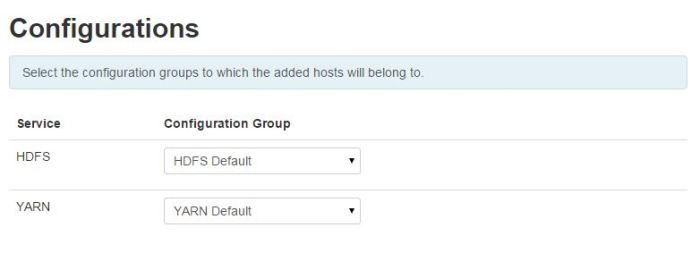
    ambari-new-host-configurationsClick Next.
  6. In step Review, one can just doublecheck if everything is as planned.
    Click deploy if everything is as it should be.
  7. Step Install, Start and Test is the last step. After everything is installed, new DataNode has joined the cluster.Here is how this should look like:
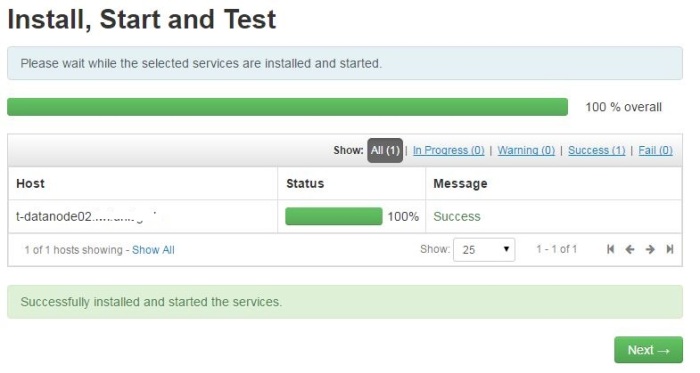
    ambari-new-host-install-successClick Next.
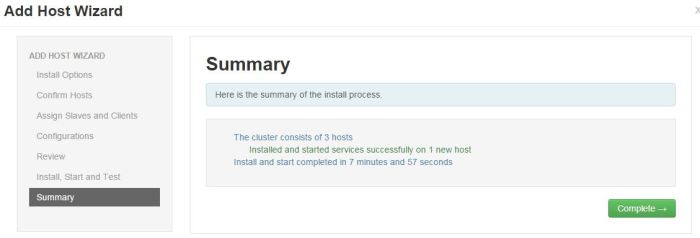
  8. Final step – Summary – gives a status update.ambari-new-host-summaryClick on Complete and list of installed Hosts will load.

Installing Flume on Hortonworks cluster using Ambari

Add Flume in Ambari

  1. Click on Aded Service from the Ambari interface.
    flume-add service
  2. Flume service available in HDP is 1.5.2. Choose this service to be installed.
    flume-available version
  3. Pick where to install the Flume service. In this case, Flume is added to the namenode. The services can be moved to another node by using Ambari.
    flume-choose node
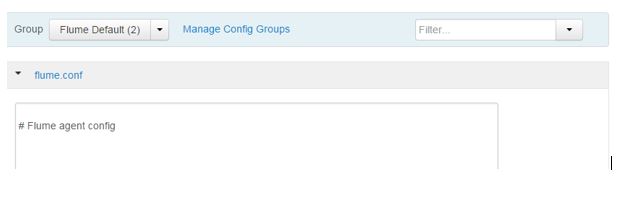
  4. In step Customize Services, Flume agent can be configured. This can be done after the service is installed. For now, let it be empty.
    flume-agent config
  5. In step Review, click on Deploy
    flume-deploy
  6. After the install, the service is started and tested. If everything goes well, the green progress bar shows up
    flume-install start and test
  7. The summary warns you that some services would have to be restarted so that Flume can function properly. This is a generic message. In case of installing only Flume, no restart of existing services is needed.
    flume-summary

Work in Linux

  1. User flume is added automatically by Ambari and it belongs to group hadoop.
    flume-linux group

Work in HDFS

  1. In order for user flume to work properly on HDFS, flume folder has to be created under /user in HDFS. For example, in case of deleting files in HDFS as user flume, deleted files are moved to /user/flume.Create /user/flume in HDFS.
    sudo -u hdfs hadoop fs -mkdir /user/flume

    Give ownership to user flume.

    sudo -u hdfs hadoop fs -chown flume /user/flume

    Give read, write and execute to flume and flume’s HDFS group – hdfs.

    sudo -u flume hadoop fs -chmod 770 /user/flume


Installing Spark on Hortonworks cluster using Ambari

The environment

Ubuntu Trusty 14.04. Ambari is used to install the cluster. MySql is used for storing Ambari’s metadata.
Spark is installed on a client node.


Note!

My experience with administrating Spark from Ambari has made me install Spark manually, not from Ambari and not by using Hortonworks packages. I install Apache Spark manually on a client node – described here.

Some reasons for that are:

  • New Spark version available every quarter – Hortonworks does not keep up
  • Possibility of running different Spark version on the same client
  • Better control over configuration files
  • Custom definition of Spark parameters for running multiple Spark context on the same client node (more in this post).


Installation process in Ambari

Hortonworks distribution installed using Ambari. Hortonworks version 2.3.4.
Services installed first: HDFS, MapReduce, YARN, Ambari Metrics, Zookeeper – I prefer to install these first in order to test if the bare minimum is up and running.

In the next step, Hive, Tez and Pig are installed.

After the successful installation, Spark is installed.

Spark versions

Now, Spark is installed. Hortonworks distribution 2.3.4 offers Spark 1.4.1 from the Choose Services menu:

ambari-spark-version

Running command spark-shell from the spark server reveals that 1.5.2 was installed:

spark-152-version-logo
and
sc-version

Spark’s HOME

Spark’s home directory ($SPARK_HOME) is /usr/hdp/current/spark-client. It is smart to export $SPARK_HOME since it is refered to in services that build on top of Spark.
Spark’s conf directory ($SPARK_CONF_DIR) is /usr/hdp/current/spark-client/conf.

Folder current has nothing but links to the Hortonworks version installed. This means that /usr/hdp/current/spark-client is linked to /usr/hdp/2.3.4.0-3485/spark/.

Comments on the installation

Spark installation from Ambari has, among other things, created a linux user spark and a directory on HDFS – /user/spark.

Spark commands, that were installed, are the following:
spark-class, spark-shell, spark-sql, spark-submit – these can be called from anywhere, since they are linked in /usr/bin.
Other spark commands not linked to the /usr/bin but can be executed from $SPARK_HOME/bin are beeline, pyspark, sparkR.

Connection to Hive

In the SPARK_CONF_DIR, hive-site.xml file can be found. The file has the following content:

<configuration>
  <property>
    <name>hive.metastore.uris</name>
    <value>thrift://hive-server:9083</value>
  </property>
</configuration>

With this propery, Spark connects to Hive. here are two lines from the output when command spark-shell is executed:

16/02/22 13:52:37 INFO metastore: Trying to connect to metastore with URI thrift://hive-server:9083
16/02/22 13:52:37 INFO metastore: Connected to metastore.

Logs

Spark’s log files are by default in /var/log/spark. This can be changed in Ambari: Spark-> Configs -> Advanced spark-env for property spark_log_dir.

Running Spark commands

Examples on how to execute the Spark commands (taken from Hortonworks Spark 1.6 Technical Preview).
These should be run as spark user from $SPARK_HOME.

spark-shell

spark-shell --master yarn-client --driver-memory 512m --executor-memory 512m

spark-submit

./bin/spark-submit --class org.apache.spark.examples.SparkPi --master yarn-client --num-executors 3 --driver-memory 512m --executor-memory 512m --executor-cores 1 lib/spark-examples*.jar 10

sparkR

running sparkR ($SPARK_HOME/bin/sparkR) returns the following:

env: R: No such file or directory

R is not installed, yet. How to install R environment is described here.

Resources

Spark 1.6 Technical Preview