Corrupted blocks in HDFS

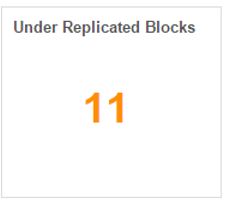
Ambari on one of my test environments was warning me about under replicated blocks in the cluster:

ambari - under replicated blocks

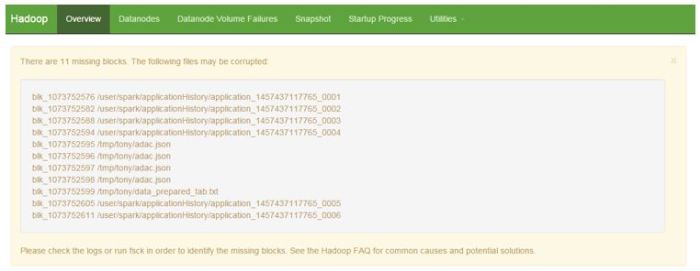
Opening the Namenode web UI (http://test01.namenode1:50070/dfshealth.html#tab-overview) painted a different picture:

namenode web ui - overview information about blocks

11 blocks are missing which might lead to corrupted files in the cluster.

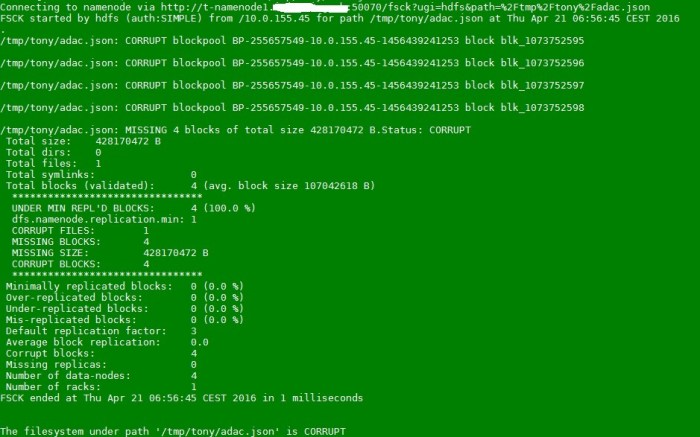
Running file check on one of the files:

sudo -u hdfs hdfs fsck /tmp/tony/adac.json

The output:

fsck - corrupted file

The output reveals that the file is corrupted, was split in 4 blocks and is replicated only once on the cluster.

Nothing to do but to permanenetly delete the file:

sudo -u hdfs hdfs dfs -rm -skipTrash /tmp/tony/adac.json

Ambari wil now show 4 blocks less in the Under Replicated Blocks widget. Refreshing the Namenode web UI will also show that the corrupted blocks are removed.

Namenode hangs when restarting -can’t leave safemode

I am using Hortonworks distribution and Ambari for Hadoop administration. Sometimes, HDFS has to be restarted and sometimes Namenode hangs in the process giving the following output:

2016-04-21 06:12:47,391 – Retrying after 10 seconds. Reason: Execution of ‘hdfs dfsadmin -fs hdfs://t-namenode1:8020 -safemode get | grep ‘Safe mode is OFF” returned 1.
2016-04-21 06:12:59,595 – Retrying after 10 seconds. Reason: Execution of ‘hdfs dfsadmin -fs hdfs://t-namenode1:8020 -safemode get | grep ‘Safe mode is OFF” returned 1.
2016-04-21 06:13:11,737 – Retrying after 10 seconds. Reason: Execution of ‘hdfs dfsadmin -fs hdfs://t-namenode1:8020 -safemode get | grep ‘Safe mode is OFF” returned 1.
2016-04-21 06:13:23,918 – Retrying after 10 seconds. Reason: Execution of ‘hdfs dfsadmin -fs hdfs://t-namenode1:8020 -safemode get | grep ‘Safe mode is OFF” returned 1.
2016-04-21 06:13:36,101 – Retrying after 10 seconds. Reason: Execution of ‘hdfs dfsadmin -fs hdfs://t-namenode1:8020 -safemode get | grep ‘Safe mode is OFF” returned 1.

To get out of this loop I run the following command from the command line on the Namenode:

sudo -u hdfs hdfs dfsadmin -safemode leave

The output is the following:

Safe mode is OFF

If you have High Availability in the cluster, something like this shows up:

Safe mode is OFF in t-namenode1/10.x.x.171:8020
Safe mode is OFF in t-namenode2/10.x.x.164:8020

After the command is executed, the Namenode restart process in Ambari continues.

Setting up RStudio Server to run with Apache Spark

I have installed R and SparkR on my Hadoop/Spark cluster. That is described in this post. I have also installed Apache Zeppelin with R to use SparkR with Zeppelin (here).
So far, I can offer my users SparkR through CLI and Apache Zeppelin. But they all want one interface – RStudio. This post describes how to install RStudio Server and configure it to work with Apache Spark.

On my cluster, I am running Apache Spark 1.6.0, manually installed (installation process). Underneath is a multinode Hadoop cluster from Hortonworks.

RStudio Server is installed on one client node in the cluster:

  1. Update the Ubuntu system
    sudo apt-get update
  2. Download the repository file (make sure you are downloading RStudio Server, not the client!)
    sudo wget https://download2.rstudio.org/rstudio-server-0.99.893-amd64.deb
  3. Install gdebi (about gdebi)
    sudo apt-get install gdebi-core -y
  4. Install package libjpeg62
    sudo apt-get install libjpeg62 -y
  5. In case you get the following error

    You might want to run ‘apt-get -f install’ to correct these:
    The following packages have unmet dependencies:
    rstudio : Depends: libgstreamer0.10-0 but it is not going to be installed                                    Depends: libgstreamer-plugins-base0.10-0 but it is not going to be installed
    E: Unmet dependencies. Try ‘apt-get -f install’ with no packages (or specify a solution).

    Run:

    sudo apt-get -f install
  6. Install RStudio Server
    sudo gdebi rstudio-server-0.99.893-amd64.deb
  7. During the installation, the following question outputs. Type “y” and press Enter.

    RStudio is a set of integrated tools designed to help you be more productive with R. It includes a console, syntax-highlighting editor that supports direct code execution, as well as tools for plotting, history, and workspace management.
    Do you want to install the software package? [y/N]:

  8. Find your path to $SPARK_HOME
    echo $SPARK_HOME
  9. Setting environment variable in Rprofile.site
    Location of the file should be /usr/lib/R/etc/Rprofile.site. Open the Rprofile.site file and append the following line to it (or whatever your home to Spark is)

    Sys.setenv(SPARK_HOME="/usr/apache/spark-1.6.0-bin-hadoop2.6")
  10. Restart RStudio
    sudo rstudio-server restart
  11. RStudio with Spark is now installed and can be accessed on

    http://rstudio-server:8787

  12. Log in with one Unix user (if you do not have one run sudo adduser user1). User cannot be root or have ID lower than 100.
  13. Load library SparkR
    library(SparkR, lib.loc = c(file.path(Sys.getenv("SPARK_HOME"), "R", "lib")))
  14. SparkContext environment values (used for parameter sparkEnvir when creating SparkContext in the next step). These can be adjusted according to the cluster and user needs.
    spark_env = list('spark.executor.memory' = '4g',
    'spark.executor.instances' = '4',
    'spark.executor.cores' = '4',
    'spark.driver.memory' = '4g')
  15. Creating SparkContext
    sc <- sparkR.init(master = "yarn-client", appName = "RStudio", sparkEnvir = spark_env, sparkPackages="com.databricks:spark-csv_2.10:1.4.0")
  16. Creating an sqlConext
    sqlContext <- sparkRSQL.init(sc)
  17. In case the SparkContext has to be initialized all over again, stop it first. Then repeat the last two steps.
    sparkR.stop()

In YARN Resource Manager Console the running application can be controlled:

RStudio - YARN status

SparkR in RStudio is now ready for use. In order to get a better understanding of how SparkR works with R, check this post: DataFrame vs data.frame.

SparkR and R – DataFrame and data.frame

I currently work as a Big Data Engineer at the University of St. Gallen. Many researchers work here and are using R to make their research easier. They are familiar with R’s limitations and workarounds.

One of my tasks is introducing SparkR to the researchers. This post gives a short introduction to SparkR and R and clears out any doubt about data frames.

R is a popular tool for statistics and data analysis. It uses dataframes (data.frame), has rich visualization capabilities and many libraries the R community is developing.

The challenge with R is how to make it work on big data; how to use R one huge datasets and on big data clusters.

Spark is a fast and general engine for data processing. It is growing rapidly and has been adopted by many organizations for running faster calculations on big datasets.

SparkR is an R package that provides an interface to use Spark from R. it enables R users to run job on big data clusters with Spark. SparkR API 1.6.0 is available here.

data.frame in R is a list of vectors with equal length.

DataFrame in Spark is a distributed collection of data organized into named columns.

When working with SparkR and R, it is very important to understand that there are two different data frames in question – R data.frame and Spark DataFrame. Proper combination of both is what gets the job done on big data with R.

In practice, the first step is to process the big data using SparkR and its DataFrames. As much as possible is done in this stage (cleaning, filtering, aggregation, various statistical operations).

When the dataset is processed by Spark R it can be collected into an R data.frame. This is done by calling collect() which “transforms” a SparkR DataFrame into an R data.frame. When collect() is called the elements of SparkR DataFrame from all workers are collected and pushed into an R data.frame on the client – where SparkR functionality can be used.

SparkR R flow

Figure 1

Common question many R users ask is “Can I run collect on all my big data and then do R analysis?” The answer is no. If you do that then you are where you were before looking into SparkR – you are doing all your processing, cleaning, wrangling, data science on your client.

Useful installation posts

How to manually install Spark 1.6.0 on a multinode Hadoop cluster is described here:Installing Apache Spark 1.6.0 on a multinode cluster

How to install SparkR on a multinode Hadoop cluster is described here: Installing R on Hadoop cluster to run sparkR

I am testing SparkR and Pyspark in Zeppelin and the Zeppelin installation process is here: Building Zeppelin-With-R on Spark and Zeppelin

Practical examples

Let us see how this works in practice:

I have a file in Hadoop (HDFS), file size is 1.9 GB, it is a CSV file with something over 20 million rows. Looking at the Figure 1, this file is in the blue box.

I run a read.df() command to load the data from the data source into a DataFrame (orange box in Figure 1).

crsp <- read.df(sqlContext, "/tmp/crsp/AllCRSP.csv", source = "com.databricks.spark.csv", inferSchema = "true", header = "true")

Object crsp is a SparkR object, not an R object, which means I can run SparkR commands on it.

If I run str(crsp) command, which is an R command I get the following:

Formal class ‘DataFrame’ [package “SparkR”] with 2 slots
..@ env:<environment: 0x3b44be0>
..@ sdf:Class ‘jobj’ <environment: 0x2aaf5f8>

This does not look familiar to an R user. Data frame crsp is a SparkR DataFrame.

SparkR DataFrame to R data.frame

Since DataFrame crsp has over 20 million rows, I am going to take a small sample to create a new Dataframe for this example:

df_sample <- sample(crsp, withReplacement = False, fraction = 0.0001)

I have created a new DataFrame called df_frame. It has a bit over 2000 rows and SparkR functionality can be used to manipulate it.

I am going to create an R data.frame out of the df_sample DataFrame:

rdf_sample <- collect(df_sample)

I now have two data frames: SparkR DataFrame called df_sample and R data.frame called rdf_sample.

Running str() on both object gives me the following outputs:

str(df_sample)

Formal class ‘DataFrame’ [package “SparkR”] with 2 slots
..@ env:<environment: 0xdb19d40>
..@ sdf:Class ‘jobj’ <environment: 0xd9b4500>

str(rdf_sample)

‘data.frame’: 2086 obs. of 16 variables:
$ PERMNO : int 15580 59248 90562 15553 11499 61241 14219 14868 14761 11157 …
$ Date : chr “20151120” “20111208” “20061213” “20110318” …
$ SICCD : chr “6320” “2082” “2082” “6719” …
$ TICKER : chr “AAME” “TAP” “TAP” “AGL” …
$ NAICS : int 524113 312120 312120 551112 333411 334413 541511 452910 211111 334511 …
$ PERMCO : int 5 33 33 116 176 211 283 332 352 376 …
$ HSICMG : int 63 20 20 49 35 36 73 54 29 38 …
$ BIDLO : num 4.51 40.74 74 38.75 4.03 …
$ ASKHI : num 4.89 41.26 75 39.4 4.11 …
$ PRC : num 4.69 41.01 -74.5 38.89 4.09 …
$ VOL : int 1572 1228200 0 449100 20942 10046911 64258 100 119798 19900 …
$ SHROUT : int 20547 175544 3073 78000 14289 778060 24925 2020 24165 3728 …
$ CFACPR : num 1 1 2 1 1 1 0.2 1 1 1 …
$ CFACSHR: num 1 1 2 1 1 1 0.2 1 1 1 …
$ OPENPRC: num 4.88 41.23 NA 39.07 4.09 …
$ date : chr “20151120” “20111208” “20061213” “20110318” …

Datatype conversion example

Running a SparkR command on the DataFrame:

df_sample$Date <- cast(df_sample$Date, "string")

Is going to convert the datatype from Integer to String.

Running an R command on it will not be effective:

df_sample$Date <- as.character(df_sample$Date)

Output:

Error in as.character.default(df_sample$Date) :
no method for coercing this S4 class to a vector

Since I have converted the DataFrame df_sample to data.frame rdf_sample, I can now put my R hat on and use R functionalities:

rdf_sample$Date <- as.character(rdf_sample$Date)

R data.frame to SparkR DataFrame

In some cases, you have to go the other way – converting an R data.frame to SparkR DataFrame. This is done by using createDataFrame() method

new_df_sample <- createDataFrame(sqlContext, rdf_sample)

If I run str(new_df_sample) I get the following output:

Formal class ‘DataFrame’ [package “SparkR”] with 2 slots
..@ env:<environment: 0xdd9ddb0>
..@ sdf:Class ‘jobj’ <environment: 0xdd99f40>

Conclusion

Knowing which data frame you are about to manipulate saves you a great deal of trouble. It is important to understand what can SparkR do for you so that you can take the best from both worlds.

SparkR is a newer addition to the Spark family. The community is still small so patience is the key ingredient.

Ambari Upgrade 1: Upgrading Hortonworks Ambari from 2.1 to 2.2

Introduction

This post explains how to upgrade from Ambari 2.1 to either version 2.2.1.1 or 2.2.2.0.

Im using an external database MySql as Ambari database. My operating system is Ubuntu 14.04 Trusty. Hive service is using external database – MySql (important information for later).

The cluster does NOT have the following services installed:

  • Ranger
  • Storm
  • Ganglia
  • Nagios

The upgraded cluster does not use LDAP, nor Active Directory.

If you have any of the above mentioned services, check this link to learn how to handle them in the upgrade process.

Backup

The following steps are done on the Ambari server, unless explicity mentioned otherwise.

  1. Create a folder for backup files on all nodes in the cluster.
    mkdir /home/ubuntu/ambari-backup
  2. Backup the Ambari MySql database.
    DAT=`date +%Y%m%d_%H%M%S`
    mysqldump -u root -proot ambari_db > /home/ubuntu/ambari-backup/ambari_db_$DAT.sql
  3. Backup the ambari.properties file.
    sudo cp /etc/ambari-server/conf/ambari.properties /home/ubuntu/ambari-backup

Upgrade

  1. Make sure you have Java 1.7+ on the Ambari server.
  2. Stop Ambari Metrics from the Ambari web UI.
  3. Stop Ambari server
    sudo ambari-server stop
  4. Stop all Ambari agents on all nodes.
    sudo ambari-agent stop
  5. Remove old repository file ambari.list from all nodes. Different Linux flavours might have different file name check here, page 6.
    sudo mv /etc/apt/sources.list.d/ambari.list /home/ubuntu/ambari-backup
  6. Download new repository file on all nodes.
    Ambari 2.2.1 for Ubuntu 14:

    sudo wget -nv http://public-repo-1.hortonworks.com/ambari/ubuntu14/2.x/updates/2.2.1.1/ambari.list -O /etc/apt/sources.list.d/ambari.list

    Ambari 2.2.2 for Ubuntu 14:

    sudo wget -nv http://public-repo-1.hortonworks.com/ambari/ubuntu14/2.x/updates/2.2.2.0/ambari.list -O /etc/apt/sources.list.d/ambari.list
  7. Update Ubuntu packages and check version.
    sudo apt-get clean all
    sudo apt-get update
    sudo apt-cache show ambari-server | grep Version

    If you are installing to 2.2.1, you should see the following output:
    Version: 2.2.1.1-70
    If you are installing to 2.2.2, you should see the following output:
    Version: 2.2.2.0-460

  8. Install Ambari server on the node dedicated for Ambari server.
    sudo apt-get install ambari-server

    Confirm that there is only one ambari-server*.jar file in /usr/lib/ambari-server.
    Jar files related to upgrade 2.2.1:

    ambari-metrics-common-2.2.1.1.70.jar
    ambari-server-2.2.1.1.70.jar
    ambari-views-2.2.1.1.70.jar

    Jar files related to upgrade 2.2.2:

    ambari-metrics-common-2.2.2.0.460.jar
    ambari-server-2.2.2.0.460.jar
    ambari-views-2.2.2.0.460.jar

  9. Install Ambari agents on all nodes in the cluster.
    sudo apt-get update -y && sudo apt-get install ambari-agent
  10. Upgrade Ambari database.
    sudo ambari-server upgrade
  11. The following question show up: “Ambari Server configured for MySQL. Confirm you have made a backup of the Ambari Server database [y/n] (y)?”
    Press “y”, since that was done in the backup process.When the installation is completed, the following output concludes the installation process:

    Ambari Server ‘upgrade’ completed successfully.

  12. Start Ambari server.
    sudo ambari-server start
  13. On all nodes where Ambari agent is installed, start the agent.
    sudo ambari-agent start
  14. Hive in the cluster is using external database – MySql, so this step is mandatory. Reinstall mysql connector file
    sudo ambari-server setup --jdbc-db=mysql --jdbc-driver=/usr/share/java/mysql-connector-java.jar
  15. Log in to the upgraded Ambari (same URL, same port, same username and password)
  16. Restart all services in Ambari

Ambari Metrics upgrade

  1. Stop all Ambari Metrics services in Ambari.
  2. On every node in the cluster, where Metrics Monitor is installed, execute the following commands.
    sudo apt-get clean all
    sudo apt-get update
    sudo apt-get install ambari-metrics-assembly
  3. On every node in the cluster, where Metrics Collector is installed, execute the following commands (yes, the command is the same as in previous step).
    sudo apt-get install ambari-metrics-assembly
  4. Start Ambari Metrics services in Ambari.

Warning!

After the upgrade, it is possible to run into the following message when accessing Ambari Web UI.

Ambari post upgrade message in browser

Ctrl+Shift+R solves the problem. The text in the message is quite descriptive and explains why this message is showing.


Next step is installing Grafana. This is covered in post Ambari Upgrade 2.

Additional links

The link takes you to the Hortonworks Ambari 2.2.1.1 upgrade document.
The link takes you to the Hortonworks Ambari 2.2.2.0 upgrade document.

Zeppelin thrift error “Can’t get status information “

I have multiple users on one client who are going to use/test ZeppelinR. For every Zeppelin user I create a copy of built Zeppelin folder in user’s home directory. I dedicate a port to that user (8080 is for my testing, running), for example my first user got port 8082. This is done in user’s $ZEPPELIN_HOME/conf/zeppelin-site.xml.

Example for one user:

<property>
  <name>zeppelin.server.port</name>
  <value>8082</value>
  <description>Server port.</description>
</property>

Running Zeppelin as root is not a big problem. Running ZeppelinR as root is also not so problematic. Running it as a normal Linux user can give some challenges.

There is this error message that can surprise you when starting a new Spark context from Zeppelin Web UI.

Taken from Zeppelin log file (zeppelin-user_running_zeppelin-t-client01.log):

ERROR [2016-03-18 08:10:47,401] ({Thread-20} RemoteScheduler.java[getStatus]:270) – Can’t get status information
org.apache.thrift.transport.TTransportException
at org.apache.thrift.transport.TIOStreamTransport.read(TIOStreamTransport.java:132)
at org.apache.thrift.transport.TTransport.readAll(TTransport.java:86)
at org.apache.thrift.protocol.TBinaryProtocol.readAll(TBinaryProtocol.java:429)
at org.apache.thrift.protocol.TBinaryProtocol.readI32(TBinaryProtocol.java:318)
at org.apache.thrift.protocol.TBinaryProtocol.readMessageBegin(TBinaryProtocol.java:219)
at org.apache.thrift.TServiceClient.receiveBase(TServiceClient.java:69)
at org.apache.zeppelin.interpreter.thrift.RemoteInterpreterService$Client.recv_getStatus(RemoteInterpreterService.java:355)
at org.apache.zeppelin.interpreter.thrift.RemoteInterpreterService$Client.getStatus(RemoteInterpreterService.java:342)
at org.apache.zeppelin.scheduler.RemoteScheduler$JobStatusPoller.getStatus(RemoteScheduler.java:256)
at org.apache.zeppelin.scheduler.RemoteScheduler$JobStatusPoller.run(RemoteScheduler.java:205)
ERROR [2016-03-18 08:11:47,347] ({pool-1-thread-2} RemoteScheduler.java[getStatus]:270) – Can’t get status information
org.apache.thrift.transport.TTransportException
at org.apache.thrift.transport.TIOStreamTransport.read(TIOStreamTransport.java:132)
at org.apache.thrift.transport.TTransport.readAll(TTransport.java:86)
at org.apache.thrift.protocol.TBinaryProtocol.readAll(TBinaryProtocol.java:429)
at org.apache.thrift.protocol.TBinaryProtocol.readI32(TBinaryProtocol.java:318)
at org.apache.thrift.protocol.TBinaryProtocol.readMessageBegin(TBinaryProtocol.java:219)
at org.apache.thrift.TServiceClient.receiveBase(TServiceClient.java:69)
at org.apache.zeppelin.interpreter.thrift.RemoteInterpreterService$Client.recv_getStatus(RemoteInterpreterService.java:355)
at org.apache.zeppelin.interpreter.thrift.RemoteInterpreterService$Client.getStatus(RemoteInterpreterService.java:342)
at org.apache.zeppelin.scheduler.RemoteScheduler$JobStatusPoller.getStatus(RemoteScheduler.java:256)
at org.apache.zeppelin.scheduler.RemoteScheduler$JobRunner.run(RemoteScheduler.java:335)
at java.util.concurrent.Executors$RunnableAdapter.call(Executors.java:471)
at java.util.concurrent.FutureTask.run(FutureTask.java:262)
at java.util.concurrent.ScheduledThreadPoolExecutor$ScheduledFutureTask.access$201(ScheduledThreadPoolExecutor.java:178)
at java.util.concurrent.ScheduledThreadPoolExecutor$ScheduledFutureTask.run(ScheduledThreadPoolExecutor.java:292)
at java.util.concurrent.ThreadPoolExecutor.runWorker(ThreadPoolExecutor.java:1145)
at java.util.concurrent.ThreadPoolExecutor$Worker.run(ThreadPoolExecutor.java:615)
at java.lang.Thread.run(Thread.java:745)

The zeppelin out file (zeppelin-user_running_zeppelin-t-client01.out) gives a more concrete description of the problem:

Exception in thread "Thread-80" org.apache.zeppelin.interpreter.InterpreterException: java.lang.RuntimeException: Could not find rzeppelin - it must be in either R/lib or ../R/lib
 at org.apache.zeppelin.interpreter.ClassloaderInterpreter.getScheduler(ClassloaderInterpreter.java:146)
 at org.apache.zeppelin.interpreter.LazyOpenInterpreter.getScheduler(LazyOpenInterpreter.java:115)
 at org.apache.zeppelin.interpreter.Interpreter.destroy(Interpreter.java:124)
 at org.apache.zeppelin.interpreter.InterpreterGroup$2.run(InterpreterGroup.java:115)
Caused by: java.lang.RuntimeException: Could not find rzeppelin - it must be in either R/lib or ../R/lib
 at org.apache.zeppelin.rinterpreter.RContext$.apply(RContext.scala:353)
 at org.apache.zeppelin.rinterpreter.RInterpreter.rContext$lzycompute(RInterpreter.scala:43)
 at org.apache.zeppelin.rinterpreter.RInterpreter.rContext(RInterpreter.scala:43)
 at org.apache.zeppelin.rinterpreter.RInterpreter.getScheduler(RInterpreter.scala:80)
 at org.apache.zeppelin.rinterpreter.RRepl.getScheduler(RRepl.java:93)
 at org.apache.zeppelin.interpreter.ClassloaderInterpreter.getScheduler(ClassloaderInterpreter.java:144)
 ... 3 more

The way I solved it was by running Zeppelin service from the $ZEPPELIN_HOME. For users to be able to start the Zeppelin service I have created a script:

export ZEPPELIN_HOME=/home/${USER}/Zeppelin-With-R
cd ${ZEPPELIN_HOME}
/home/${USER}/Zeppelin-With-R/bin/zeppelin-daemon.sh start

Now I can start and stop the Zeppelin service and start new Spark contexts with no problem.

Here is an example of my YARN applications:

zeppelin services in YARN

And here are the outputs from Zeppelin when scala, sparkR and Hive are tested:

zeppelin user test results


Building Zeppelin-With-R on Spark and Zeppelin

For the need of my employeer I am working on setting up different environments for researchers to do their statistical analyses using distributed systems.
In this post, I am going to describe how Zeppelin with R was installed using this github project.

Ubuntu 14.04 Trusty is my Linux flavour. Spark 1.6.0 is manually installed on the cluster (link) on Openstack, Hadoop (2.7.1) distribution is Hortonworks and sparkR has been installed earlier (link).

One of the nodes in the cluster is a dedicated client node. On this node Zeppelin with R is installed.

Prerequisities

  • Spark should be installed (1.6.0 in  this case, my earlier version 1.5.2 also worked well).
  • Java – my version is java version “1.7.0_95”
  • Maven and git (how to install them)
  • User running the Zeppelin service has to have a folder under in HDFS under /user. If the user has, for example, ran Spark earlier, then this folder was created already, otherwise Spark services could not be ran.
    Example on how to create an HDFS folder under /user and change owner:

    sudo -u hdfs hadoop fs -mkdir /user/user1
    sudo -u hdfs hadoop fs -chown user1:user1 /user/user1
    
  • Create zeppelin user
    sudo adduser zeppelin

R installation process

From the shell as root

In order to have ZeppelinR running properly some R packages have to be installed. Installing the R packages has proven to be problematic if some packages are not installed as root user first.

  1. Install Node.js package manager
    sudo apt-get install npm -y
  2. The following packages need to be installed for the R package devtools installation to go through properly.
    sudo apt-get install libcurl4-openssl-dev -y
    sudo apt-get install libxml2-dev -y
  3. Later on, when R package dplyr is being installed, some warnings pop out. Just to be on the safe side these two packages should be installed.
    sudo apt-get install r-cran-rmysql -y
    sudo apt-get install libpq-dev –y
  4. For successfully installing Cairo package in R, the following two should be installed.
    sudo apt-get install libcairo2-dev –y
    sudo apt-get install libxt-dev libxaw7-dev -y
  5. To install IRkernel/repr later the following package needs to be installed.
    sudo apt-get install libzmq3-dev –y

From R as root

  1. Run R as root.
    sudo R
  2. Install the following packages in R:
    install.packages("evaluate", dependencies = TRUE, repos='http://cran.us.r-project.org')
    install.packages("base64enc", dependencies = TRUE, repos='http://cran.us.r-project.org')
    install.packages("devtools", dependencies = TRUE, repos='http://cran.us.r-project.org')
    install.packages("Cairo", dependencies = TRUE, repos='http://cran.us.r-project.org')

    (The reason why I am running one package at a time is to control what is going on when package is being installed)

  3. Load devtools for github command
    library(devtools)
  4. Install IRkernel/repr package
    install_github('IRkernel/repr')
  5. Install these packages
    install.packages("dplyr", dependencies = TRUE, repos='http://cran.us.r-project.org')
    install.packages("caret", dependencies = TRUE, repos='http://cran.us.r-project.org')
    install.packages("repr", dependencies = TRUE, repos='http://irkernel.github.io/')
  6. Install R interface to Google Charts API
    install.packages('googleVis', dependencies = TRUE, repos='http://cran.us.r-project.org')
  7. Exit R
    q()

Zeppelin installation process

Hortonworks installs its Hadoop under /usr/hdp. I decided to follow the pattern and install Apache services under /usr/apache.

  1. Create log folder for Zeppelin log files
    sudo mkdir /var/log/zeppelin
    sudo chown zeppelin:zeppelin /var/log/zeppelin
  2. Go to /usr/apache (or wherever your home to ZeppelinR is going to be) and clone the github project.
    sudo git clone https://github.com/elbamos/Zeppelin-With-R

    Zeppelin-With-R folder is now created. This is going to be ZeppelinR’s home. In my case this would be /usr/apache/Zeppelin-With-R.

  3. Change the ownership of the folder
    sudo chown –R zeppelin:zeppelin Zeppelin-With-R
  4. Adding global variable ZEPPELIN_HOME
    Open the environment file

    sudo vi /etc/environment

    And add the variable

    export ZEPPELIN_HOME=/usr/apache/Zeppelin-With-R

    Save and exit the file and do not forget to reload it.

    source /etc/environment
  5. Change user to zeppelin (or whoever is going to build the Zeppelin-With-R)
    su zeppelin
  6. Make sure you are in $ZEPPELIN_HOME and build Zeppelin-With R
    mvn clean package -Pspark-1.6 -Dspark.version=1.6.0 -Dhadoop.version=2.7.1 -Phadoop-2.6 -Pyarn -Ppyspark -DskipTests
  7. Initial information before build starts
    zeppelin with r build start
    R interpreter is on the list.
  8. Successful build
    zeppelin with r build end
    ZeppelinR is now installed. The next step is configuration.

Configuring ZeppelinR

  1. Copying and modifying hive-site.xml (as root). From Hive’s con folder, copy the hive-site.conf file to $ZEPPELIN_HOME/conf.
    sudo cp /etc/hive/conf/hive-site.xml $ZEPPELIN_HOME/conf/
  2. Change the owner of the file to zeppelin:zeppelin.
    sudo chown zeppelin:zeppelin $ZEPPELIN_HOME/conf/hive-site.xml
  3. Log in as zeppelin and modify the hive-site.xml file.
    vi $ZEPPELIN_HOME/conf/hive-site.xml

    remove “s” from the value of properties hive.metastore.client.connect.retry.delay and
    hive.metastore.client.socket.timeout to avoid a number format exception.

  4. Create folder for Zeppelin pid.
    mkdir $ZEPPELIN_HOME/run
  5. Create zeppelin-site.xml and zeppelin-env.sh from respective templates.
    cp $ZEPPELIN_HOME/conf/zeppelin-site.xml.template $ZEPPELIN_HOME/conf/zeppelin-site.xml
    cp $ZEPPELIN_HOME/conf/zeppelin-env.sh.template $ZEPPELIN_HOME/conf/zeppelin-env.sh
  6. Open $ZEPPELIN_HOME/conf/zeppelin-env.sh and add:
    export SPARK_HOME=/usr/apache/spark-1.6.0-bin-hadoop2.6
    export HADOOP_CONF_DIR=/etc/hadoop/conf
    export ZEPPELIN_JAVA_OPTS= -Dhdp.version=2.3.4.0-3485
    export ZEPPELIN_LOG_DIR=/var/log/zeppelin
    export ZEPPELIN_PID_DIR=${ZEPPELIN_HOME}/run

    Parameter Dhdp.version should match your Hortonworks distribution version.
    Save and exit the file.

Zeppelin-With-R is now ready for use. Start it by running

$ZEPPELIN_HOME/bin/zeppelin-daemon.sh start

How to configure Zeppelin interpreters is described in this post.


Note!
My experience shows that if you run ZeppelinR as zeppelin user, you will not be able to use spark.r functionalities. The error message I am getting is unable to start device X11cairo. The reason is lack of permissions on certain files within R installation. This is something I still have to figure out. For now running as root does the trick.

http//:zeppelin-server:8080 takes you to the Zeppelin Web UI. How to configure interpreters Spark and Hive is described in this post.

When interpreters are configures, a notebook RInterpreter is available for test.


SparkContext allocates random ports. How to control the port allocation.

When SparkContext is in process of creation, a bunch of random ports are allocated to run the Spark service. This can be annoying when you have security groups to think of.

Note!
A more detailed post on this topic is here.

Here is an example of how random ports are allocated when Spark service is started:

spark ports random

The only sure bet is 4040 (or 404x depending on how many Spark Web UI have been already started).

On Apache Spark website, under Configuration, under Networking, 6 port properties have default value random. These are the properties that have to be tamed.

spark port random printscreen

(The only 6 properties with default value random among all Spark properties)

Solution

Open $SPARK_HOME/conf/spark-defaults.conf:

sudo -u spark vi conf/spark-defaults.conf

The following properties should be added:

spark.blockManager.port    38000
spark.broadcast.port       38001
spark.driver.port          38002
spark.executor.port        38003
spark.fileserver.port      38004
spark.replClassServer.port 38005

I have picked port range 38000-38005 for my Spark services.

If I run Spark service now, the ports in use are now as defined in the configuration file:

spark ports tamed

Building Apache Zeppelin 0.6.0 on Spark 1.5.2 & 1.6.0 in a cluster mode

I have Ubuntu 14.04 Trusty and a multinode Hadoop cluster. Hadoop distribution is Hortonworks 2.3.4. Spark is installed through Ambari Web UI and running version is 1.5.2 (upgraded to 1.6.0).

I am going to explain how I built and set up Apache Zeppelin 0.6.0 on Spark 1.5.2 and 1.6.0

Prerequisities

Non root account

Apache Zeppelin creators recommend not to use root account. For this service, I have created a new user zeppelin.

Java 7

Zeppelin uses Java 7. My system has Java 8, so I have installed Java 7 just for Zeppelin. Installation is in the following directory done as user zeppelin.

/home/zeppelin/prerequisities/jdk1.7.0_79

JAVA_HOME is added to the user’s bashrc.

export JAVA_HOME=/home/zeppelin/prerequisities/jdk1.7.0_79

Zeppelin log directory

Create zeppelin log directory.

sudo mkdir /var/log/zeppelin

Change ownership.

sudo chown zeppelin:zeppelin /var/log/zeppelin

If this is not done, Zeppelin’s log files are written in folder logs right in the current folder.

Clone and Build

Log in as user zeppelin and go to users home directory.

/home/zeppelin

Clone the source code from github.

git clone https://github.com/apache/incubator-zeppelin.git incubator-zeppelin

Zeppelin has a home now.

/home/zeppelin/incubator-zeppelin

Go into Zeppelin home and build Zeppelin

mvn clean package -Pspark-1.5 -Dspark.version=1.5.2 -Dhadoop.version=2.7.1 -Phadoop-2.6 -Pyarn -DskipTests

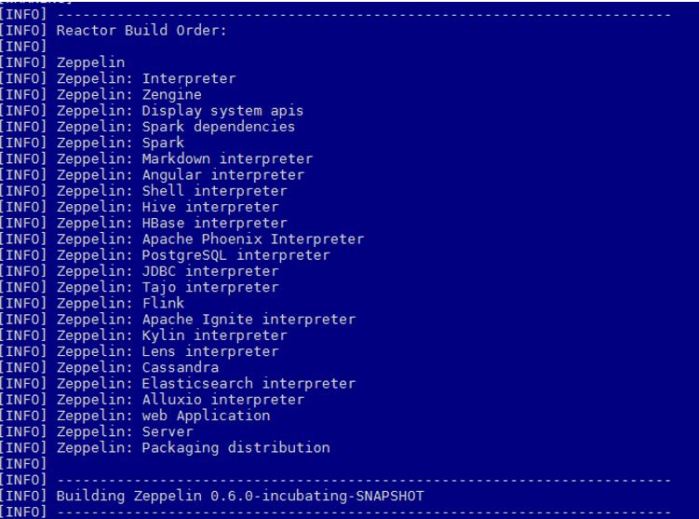
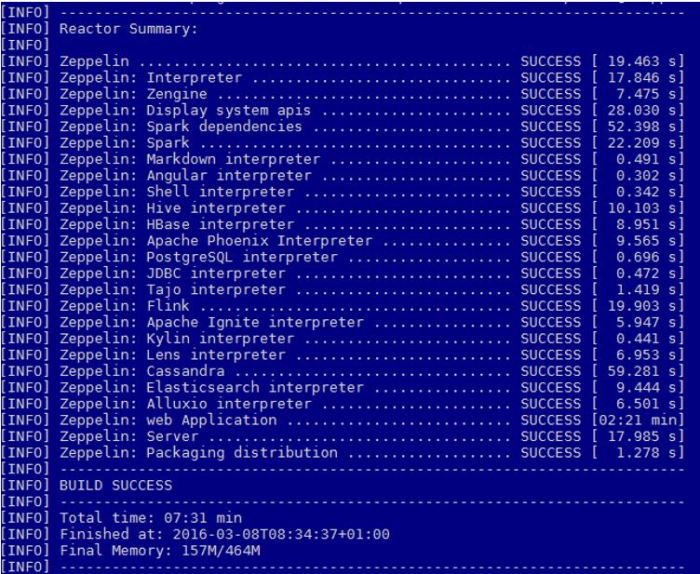
Build order.

zeppelin build start

7:31 minutes later, Zeppelin is successfully built.

zeppelin build success

Note!

If you try with something like the following 2 examples:

mvn clean package -Pspark-1.5 -Dspark.version=1.5.0 -Dhadoop.version=2.7.1 -Phadoop-2.7 -Pyarn -DskipTests
mvn clean package -Pspark-1.5 -Dspark.version=1.5.2 -Dhadoop.version=2.7.1 -Phadoop-2.7 -Pyarn –DskipTests

Build will succeed, but this warning will appear at the bottom of Build report:

[WARNING] The requested profile “hadoop-2.7” could not be activated because it does not exist.

Hadoop version mentioned in the maven execution must be 2.6 even though actual Hadoop version is 2.7.x.

hive-site.xml

Copy hive-site.xml from hive folder (this is done on Hortonworks distribution, users using other distribution should check where the file is located).

sudo cp /etc/hive/conf/hive-site.xml $ZEPPELIN_HOME/conf

Change ownership of the file.

sudo chown zeppelin:zeppelin $ZEPPELIN_HOME/conf/hive-site.xml

zeppelin-env.sh

Go to Zeppelin home and create zeppelin-env.sh by using the template in conf directory.

cp conf/zeppelin-env.sh.template conf/zeppelin-env.sh

Open it and add the following variables:

export JAVA_HOME=/home/zeppelin/prerequisities/jdk1.7.0_79
export HADOOP_CONF_DIR=/etc/hadoop/conf
export ZEPPELIN_JAVA_OPTS="-Dhdp.version=2.3.4.0-3485"
export ZEPPELIN_LOG_DIR=/var/log/zeppelin

The variable in the third line depends on the Hortonworks build. Find your hdp version by executing

hdp-select status hadoop-client

If your Hortonworks version is 2.3.4, the output is:

hadoop-client – 2.3.4.0-3485

Zeppelin daemon

Start Zeppelin from Zeppelin home

./bin/zeppelin-daemon.sh start

Status after starting the daemon:

zeppelin start

One can check if service is up:

./bin/zeppelin-daemon.sh status

Status:

zeppelin status

Zeppelin can be restarted in the following way:

./bin/zeppelin-daemon.sh restart

Status:

zeppelin restart

Stopping Zeppelin:

./bin/zeppelin-daemon.sh stop

Status:

zeppelin stop

Configuring interpreters in Zeppelin

Apache Zeppelin comes with many default interpreters. It is also possible to create your own interpreters. How to configure default Spark and Hive interpreters is covered in this post.

Where are HDFS files in Linux?

In this post, I take an example file in HDFS, run filecheck to find locations of file’s block replications, file’s block pool ID and block ID. This information will help me locate the file’s block on local filesystem on one of the DataNodes.

In second part, I alter the file on local filesystem (from HDFS standpoint, it is a block). This results in Namenode defining the block as corrupted and new replication is created on another DataNode.

HDFS

Show details of the example file in HDFS:

hadoop fs -ls  /tmp/test_spark.csv

Output:

-rw-r–r–   3 ubuntu hdfs   56445434 2016-03-06 18:17 /tmp/test_spark.csv

Run tail on the file:

hadoop fs -tail  /tmp/test_spark.csv

The output is this:

804922,177663.1,793945.2,”factor_1_10000″,”factor_2_10000″
93500,378660.1,120037.2,”factor_1_10000″,”factor_2_10000″
394490,149354.1,253562.2,”factor_1_10000″,”factor_2_10000″
253001,446918.1,602891.2,”factor_1_10000″,”factor_2_10000″
196553,945027.1,97370.2,”factor_1_10000″,”factor_2_10000″
83715,56758.1,888537.2,”factor_1_10000″,”factor_2_10000″
593831,369048.1,844320.2,”factor_1_10000″,”factor_2_10000″
721077,109160.1,604853.2,”factor_1_10000″,”factor_2_10000″
383946,111066.1,779658.2,”factor_1_10000″,”factor_2_10000″
461973,695670.1,596577.2,”factor_1_10000″,”factor_2_10000″
70845,360039.1,479357.2,”factor_1_10000″,”factor_2_10000″
813333,839700.1,568456.2,”factor_1_10000″,”factor_2_10000″
967549,721770.1,998214.2,”factor_1_10000″,”factor_2_10000″
919219,466408.1,583846.2,”factor_1_10000″,”factor_2_10000″
977914,169416.1,412922.2,”factor_1_10000″,”factor_2_10000″
739637,25221.1,626499.2,”factor_1_10000″,”factor_2_10000″
223358,918445.1,337362.2,”factor_1_10000″,”factor_2_10000″

I run filecheck:

hdfs fsck /tmp/test_spark.csv -files -blocks -locations

The output is:

Connecting to namenode via http://w-namenode1.domain.com:50070/fsck?ugi=ubuntu&files=1&blocks=1&locations=1&path=%2Ftmp%2Ftest_spark.csv
FSCK started by ubuntu (auth:SIMPLE) from /10.0.XXX.75 for path /tmp/test_spark.csv at Sun Mar 06 18:18:44 CET 2016
/tmp/test_spark.csv 56445434 bytes, 1 block(s):  OK
BP-1553412973-10.0.160.75-1456844185620:blk_1073741903_1079 len=56445434 repl=3 [DatanodeInfoWithStorage[10.0.XXX.103:50010,DS-1c68e4c7-d424-47e8-b7cc-941198fe2415,DISK], DatanodeInfoWithStorage[10.0.XXX.105:50010,DS-26bc20ee-68d8-423b-b707-26ae6e986562,DISK], DatanodeInfoWithStorage[10.0.XXX.104:50010,DS-76aaea28-2822-4982-8602-f5db3c47d3fd,DISK]]

Status: HEALTHY
Total size:    56445434 B
Total dirs:    0
Total files:   1
Total symlinks:                0
Total blocks (validated):      1 (avg. block size 56445434 B)
Minimally replicated blocks:   1 (100.0 %)
Over-replicated blocks:        0 (0.0 %)
Under-replicated blocks:       0 (0.0 %)
Mis-replicated blocks:         0 (0.0 %)
Default replication factor:    3
Average block replication:     3.0
Corrupt blocks:                0
Missing replicas:              0 (0.0 %)
Number of data-nodes:          4
Number of racks:               1
FSCK ended at Sun Mar 06 18:18:44 CET 2016 in 1 milliseconds
The filesystem under path ‘/tmp/test_spark.csv’ is HEALTHY

The file is stored in one block ( dfs.blocksize is by default 134217728).
Replication factor is 3 (default) and the block can be found on the following DataNodes: 10.0.XXX.103, 10.0.XXX.104, 10.0.XXX.105

BP-1553412973-10.0.160.75-1456844185620 - Block Pool ID
blk_1073741903_1079 - Block ID

Linux

Now I can look for the file in Linux.

I connect to one of the datanodes that was given in the output of hadoop filecheck command.

ssh -i .ssh/key 10.0.XXX.103

Property dfs.datanode.data.dir in hdfs-default.xml, if you are manually administrating the cluster, or, in Ambari, HDFS -> Configs -> Settings -> DataNode -> DataNode directories, tells us where on the local filesystem the DataNode should store its blocks.

Default is /hadoop/hdfs/data.

If I list details of the file:

sudo -u hdfs ls -l /hadoop/hdfs/data/current/BP-1553412973-10.0.160.75-1456844185620/current/finalized/subdir0/subdir0/blk_1073741903

The output is the following:

-rw-r–r– 1 hdfs hadoop 56445434 Mar  6 18:17 /hadoop/hdfs/data/current/BP-1553412973-10.0.160.75-1456844185620/current/finalized/subdir0/subdir0/blk_1073741903

The size of the file is the same as when listing the file using hadoop fs -ls earlier (one block for this file).

Now I run tail on this file:

sudo -u hdfs tail /hadoop/hdfs/data/current/BP-1553412973-10.0.160.75-1456844185620/current/finalized/subdir0/subdir0/blk_1073741903

Result:

721077,109160.1,604853.2,”factor_1_10000″,”factor_2_10000″
383946,111066.1,779658.2,”factor_1_10000″,”factor_2_10000″
461973,695670.1,596577.2,”factor_1_10000″,”factor_2_10000″
70845,360039.1,479357.2,”factor_1_10000″,”factor_2_10000″
813333,839700.1,568456.2,”factor_1_10000″,”factor_2_10000″
967549,721770.1,998214.2,”factor_1_10000″,”factor_2_10000″
919219,466408.1,583846.2,”factor_1_10000″,”factor_2_10000″
977914,169416.1,412922.2,”factor_1_10000″,”factor_2_10000″
739637,25221.1,626499.2,”factor_1_10000″,”factor_2_10000″
223358,918445.1,337362.2,”factor_1_10000″,”factor_2_10000″

Output of tail matches the output of tail ran with hadoop fs command.


Changing the file in Linux

If I open this file for editing:

sudo -u hdfs vi /hadoop/hdfs/data/current/BP-1553412973-10.0.160.75-1456844185620/current/finalized/subdir0/subdir0/blk_1073741903

and change it. The file disappears from the parent folder.


Filecheck in HDFS

Now I run filecheck on the same file again:

hdfs fsck /tmp/test_spark.csv -files -blocks -locations

The output is the following:

Connecting to namenode via http://w-namenode1.domain.com:50070/fsck?ugi=ubuntu&files=1&blocks=1&locations=1&path=%2Ftmp%2Ftest_spark.csv
FSCK started by ubuntu (auth:SIMPLE) from /10.0.XXX.75 for path /tmp/test_spark.csv at Sun Mar 06 18:34:41 CET 2016
/tmp/test_spark.csv 56445434 bytes, 1 block(s):  OK

BP-1553412973-10.0.160.75-1456844185620:blk_1073741903_1079 len=56445434 repl=3 [DatanodeInfoWithStorage[10.0.XXX.102:50010,DS-db55f66a-e6b6-480a-87bf-2053fbed2960,DISK], DatanodeInfoWithStorage[10.0.XXX.105:50010,DS-26bc20ee-68d8-423b-b707-26ae6e986562,DISK], DatanodeInfoWithStorage[10.0.XXX.104:50010,DS-76aaea28-2822-4982-8602-f5db3c47d3fd,DISK]]

Status: HEALTHY
Total size:    56445434 B
Total dirs:    0
Total files:   1
Total symlinks:                0
Total blocks (validated):      1 (avg. block size 56445434 B)
Minimally replicated blocks:   1 (100.0 %)
Over-replicated blocks:        0 (0.0 %)
Under-replicated blocks:       0 (0.0 %)
Mis-replicated blocks:         0 (0.0 %)
Default replication factor:    3
Average block replication:     3.0
Corrupt blocks:                0
Missing replicas:              0 (0.0 %)
Number of data-nodes:          4
Number of racks:               1
FSCK ended at Sun Mar 06 18:34:41 CET 2016 in 1 milliseconds
The filesystem under path ‘/tmp/test_spark.csv’ is HEALTHY

File is still replicated 3 times on 3 DataNodes, but this time on DataNodes 10.0.XXX.102,  10.0.XXX.104, 10.0.XXX.105.

The output shows that one replication is not on datanode with IP 10.0.XXX.103 anymore. That was the datanode I connected to temper with the file.

NameNode has identified that the block is corrupted and has created a new replica of the block.