Namenode hangs when restarting -can’t leave safemode

I am using Hortonworks distribution and Ambari for Hadoop administration. Sometimes, HDFS has to be restarted and sometimes Namenode hangs in the process giving the following output:

2016-04-21 06:12:47,391 – Retrying after 10 seconds. Reason: Execution of ‘hdfs dfsadmin -fs hdfs://t-namenode1:8020 -safemode get | grep ‘Safe mode is OFF” returned 1.
2016-04-21 06:12:59,595 – Retrying after 10 seconds. Reason: Execution of ‘hdfs dfsadmin -fs hdfs://t-namenode1:8020 -safemode get | grep ‘Safe mode is OFF” returned 1.
2016-04-21 06:13:11,737 – Retrying after 10 seconds. Reason: Execution of ‘hdfs dfsadmin -fs hdfs://t-namenode1:8020 -safemode get | grep ‘Safe mode is OFF” returned 1.
2016-04-21 06:13:23,918 – Retrying after 10 seconds. Reason: Execution of ‘hdfs dfsadmin -fs hdfs://t-namenode1:8020 -safemode get | grep ‘Safe mode is OFF” returned 1.
2016-04-21 06:13:36,101 – Retrying after 10 seconds. Reason: Execution of ‘hdfs dfsadmin -fs hdfs://t-namenode1:8020 -safemode get | grep ‘Safe mode is OFF” returned 1.

To get out of this loop I run the following command from the command line on the Namenode:

sudo -u hdfs hdfs dfsadmin -safemode leave

The output is the following:

Safe mode is OFF

If you have High Availability in the cluster, something like this shows up:

Safe mode is OFF in t-namenode1/10.x.x.171:8020
Safe mode is OFF in t-namenode2/10.x.x.164:8020

After the command is executed, the Namenode restart process in Ambari continues.

Setting up RStudio Server to run with Apache Spark

I have installed R and SparkR on my Hadoop/Spark cluster. That is described in this post. I have also installed Apache Zeppelin with R to use SparkR with Zeppelin (here).
So far, I can offer my users SparkR through CLI and Apache Zeppelin. But they all want one interface – RStudio. This post describes how to install RStudio Server and configure it to work with Apache Spark.

On my cluster, I am running Apache Spark 1.6.0, manually installed (installation process). Underneath is a multinode Hadoop cluster from Hortonworks.

RStudio Server is installed on one client node in the cluster:

  1. Update the Ubuntu system
    sudo apt-get update
  2. Download the repository file (make sure you are downloading RStudio Server, not the client!)
    sudo wget https://download2.rstudio.org/rstudio-server-0.99.893-amd64.deb
  3. Install gdebi (about gdebi)
    sudo apt-get install gdebi-core -y
  4. Install package libjpeg62
    sudo apt-get install libjpeg62 -y
  5. In case you get the following error

    You might want to run ‘apt-get -f install’ to correct these:
    The following packages have unmet dependencies:
    rstudio : Depends: libgstreamer0.10-0 but it is not going to be installed                                    Depends: libgstreamer-plugins-base0.10-0 but it is not going to be installed
    E: Unmet dependencies. Try ‘apt-get -f install’ with no packages (or specify a solution).

    Run:

    sudo apt-get -f install
  6. Install RStudio Server
    sudo gdebi rstudio-server-0.99.893-amd64.deb
  7. During the installation, the following question outputs. Type “y” and press Enter.

    RStudio is a set of integrated tools designed to help you be more productive with R. It includes a console, syntax-highlighting editor that supports direct code execution, as well as tools for plotting, history, and workspace management.
    Do you want to install the software package? [y/N]:

  8. Find your path to $SPARK_HOME
    echo $SPARK_HOME
  9. Setting environment variable in Rprofile.site
    Location of the file should be /usr/lib/R/etc/Rprofile.site. Open the Rprofile.site file and append the following line to it (or whatever your home to Spark is)

    Sys.setenv(SPARK_HOME="/usr/apache/spark-1.6.0-bin-hadoop2.6")
  10. Restart RStudio
    sudo rstudio-server restart
  11. RStudio with Spark is now installed and can be accessed on

    http://rstudio-server:8787

  12. Log in with one Unix user (if you do not have one run sudo adduser user1). User cannot be root or have ID lower than 100.
  13. Load library SparkR
    library(SparkR, lib.loc = c(file.path(Sys.getenv("SPARK_HOME"), "R", "lib")))
  14. SparkContext environment values (used for parameter sparkEnvir when creating SparkContext in the next step). These can be adjusted according to the cluster and user needs.
    spark_env = list('spark.executor.memory' = '4g',
    'spark.executor.instances' = '4',
    'spark.executor.cores' = '4',
    'spark.driver.memory' = '4g')
  15. Creating SparkContext
    sc <- sparkR.init(master = "yarn-client", appName = "RStudio", sparkEnvir = spark_env, sparkPackages="com.databricks:spark-csv_2.10:1.4.0")
  16. Creating an sqlConext
    sqlContext <- sparkRSQL.init(sc)
  17. In case the SparkContext has to be initialized all over again, stop it first. Then repeat the last two steps.
    sparkR.stop()

In YARN Resource Manager Console the running application can be controlled:

RStudio - YARN status

SparkR in RStudio is now ready for use. In order to get a better understanding of how SparkR works with R, check this post: DataFrame vs data.frame.

Ambari Upgrade 1: Upgrading Hortonworks Ambari from 2.1 to 2.2

Introduction

This post explains how to upgrade from Ambari 2.1 to either version 2.2.1.1 or 2.2.2.0.

Im using an external database MySql as Ambari database. My operating system is Ubuntu 14.04 Trusty. Hive service is using external database – MySql (important information for later).

The cluster does NOT have the following services installed:

  • Ranger
  • Storm
  • Ganglia
  • Nagios

The upgraded cluster does not use LDAP, nor Active Directory.

If you have any of the above mentioned services, check this link to learn how to handle them in the upgrade process.

Backup

The following steps are done on the Ambari server, unless explicity mentioned otherwise.

  1. Create a folder for backup files on all nodes in the cluster.
    mkdir /home/ubuntu/ambari-backup
  2. Backup the Ambari MySql database.
    DAT=`date +%Y%m%d_%H%M%S`
    mysqldump -u root -proot ambari_db > /home/ubuntu/ambari-backup/ambari_db_$DAT.sql
  3. Backup the ambari.properties file.
    sudo cp /etc/ambari-server/conf/ambari.properties /home/ubuntu/ambari-backup

Upgrade

  1. Make sure you have Java 1.7+ on the Ambari server.
  2. Stop Ambari Metrics from the Ambari web UI.
  3. Stop Ambari server
    sudo ambari-server stop
  4. Stop all Ambari agents on all nodes.
    sudo ambari-agent stop
  5. Remove old repository file ambari.list from all nodes. Different Linux flavours might have different file name check here, page 6.
    sudo mv /etc/apt/sources.list.d/ambari.list /home/ubuntu/ambari-backup
  6. Download new repository file on all nodes.
    Ambari 2.2.1 for Ubuntu 14:

    sudo wget -nv http://public-repo-1.hortonworks.com/ambari/ubuntu14/2.x/updates/2.2.1.1/ambari.list -O /etc/apt/sources.list.d/ambari.list

    Ambari 2.2.2 for Ubuntu 14:

    sudo wget -nv http://public-repo-1.hortonworks.com/ambari/ubuntu14/2.x/updates/2.2.2.0/ambari.list -O /etc/apt/sources.list.d/ambari.list
  7. Update Ubuntu packages and check version.
    sudo apt-get clean all
    sudo apt-get update
    sudo apt-cache show ambari-server | grep Version

    If you are installing to 2.2.1, you should see the following output:
    Version: 2.2.1.1-70
    If you are installing to 2.2.2, you should see the following output:
    Version: 2.2.2.0-460

  8. Install Ambari server on the node dedicated for Ambari server.
    sudo apt-get install ambari-server

    Confirm that there is only one ambari-server*.jar file in /usr/lib/ambari-server.
    Jar files related to upgrade 2.2.1:

    ambari-metrics-common-2.2.1.1.70.jar
    ambari-server-2.2.1.1.70.jar
    ambari-views-2.2.1.1.70.jar

    Jar files related to upgrade 2.2.2:

    ambari-metrics-common-2.2.2.0.460.jar
    ambari-server-2.2.2.0.460.jar
    ambari-views-2.2.2.0.460.jar

  9. Install Ambari agents on all nodes in the cluster.
    sudo apt-get update -y && sudo apt-get install ambari-agent
  10. Upgrade Ambari database.
    sudo ambari-server upgrade
  11. The following question show up: “Ambari Server configured for MySQL. Confirm you have made a backup of the Ambari Server database [y/n] (y)?”
    Press “y”, since that was done in the backup process.When the installation is completed, the following output concludes the installation process:

    Ambari Server ‘upgrade’ completed successfully.

  12. Start Ambari server.
    sudo ambari-server start
  13. On all nodes where Ambari agent is installed, start the agent.
    sudo ambari-agent start
  14. Hive in the cluster is using external database – MySql, so this step is mandatory. Reinstall mysql connector file
    sudo ambari-server setup --jdbc-db=mysql --jdbc-driver=/usr/share/java/mysql-connector-java.jar
  15. Log in to the upgraded Ambari (same URL, same port, same username and password)
  16. Restart all services in Ambari

Ambari Metrics upgrade

  1. Stop all Ambari Metrics services in Ambari.
  2. On every node in the cluster, where Metrics Monitor is installed, execute the following commands.
    sudo apt-get clean all
    sudo apt-get update
    sudo apt-get install ambari-metrics-assembly
  3. On every node in the cluster, where Metrics Collector is installed, execute the following commands (yes, the command is the same as in previous step).
    sudo apt-get install ambari-metrics-assembly
  4. Start Ambari Metrics services in Ambari.

Warning!

After the upgrade, it is possible to run into the following message when accessing Ambari Web UI.

Ambari post upgrade message in browser

Ctrl+Shift+R solves the problem. The text in the message is quite descriptive and explains why this message is showing.


Next step is installing Grafana. This is covered in post Ambari Upgrade 2.

Additional links

The link takes you to the Hortonworks Ambari 2.2.1.1 upgrade document.
The link takes you to the Hortonworks Ambari 2.2.2.0 upgrade document.

Zeppelin thrift error “Can’t get status information “

I have multiple users on one client who are going to use/test ZeppelinR. For every Zeppelin user I create a copy of built Zeppelin folder in user’s home directory. I dedicate a port to that user (8080 is for my testing, running), for example my first user got port 8082. This is done in user’s $ZEPPELIN_HOME/conf/zeppelin-site.xml.

Example for one user:

<property>
  <name>zeppelin.server.port</name>
  <value>8082</value>
  <description>Server port.</description>
</property>

Running Zeppelin as root is not a big problem. Running ZeppelinR as root is also not so problematic. Running it as a normal Linux user can give some challenges.

There is this error message that can surprise you when starting a new Spark context from Zeppelin Web UI.

Taken from Zeppelin log file (zeppelin-user_running_zeppelin-t-client01.log):

ERROR [2016-03-18 08:10:47,401] ({Thread-20} RemoteScheduler.java[getStatus]:270) – Can’t get status information
org.apache.thrift.transport.TTransportException
at org.apache.thrift.transport.TIOStreamTransport.read(TIOStreamTransport.java:132)
at org.apache.thrift.transport.TTransport.readAll(TTransport.java:86)
at org.apache.thrift.protocol.TBinaryProtocol.readAll(TBinaryProtocol.java:429)
at org.apache.thrift.protocol.TBinaryProtocol.readI32(TBinaryProtocol.java:318)
at org.apache.thrift.protocol.TBinaryProtocol.readMessageBegin(TBinaryProtocol.java:219)
at org.apache.thrift.TServiceClient.receiveBase(TServiceClient.java:69)
at org.apache.zeppelin.interpreter.thrift.RemoteInterpreterService$Client.recv_getStatus(RemoteInterpreterService.java:355)
at org.apache.zeppelin.interpreter.thrift.RemoteInterpreterService$Client.getStatus(RemoteInterpreterService.java:342)
at org.apache.zeppelin.scheduler.RemoteScheduler$JobStatusPoller.getStatus(RemoteScheduler.java:256)
at org.apache.zeppelin.scheduler.RemoteScheduler$JobStatusPoller.run(RemoteScheduler.java:205)
ERROR [2016-03-18 08:11:47,347] ({pool-1-thread-2} RemoteScheduler.java[getStatus]:270) – Can’t get status information
org.apache.thrift.transport.TTransportException
at org.apache.thrift.transport.TIOStreamTransport.read(TIOStreamTransport.java:132)
at org.apache.thrift.transport.TTransport.readAll(TTransport.java:86)
at org.apache.thrift.protocol.TBinaryProtocol.readAll(TBinaryProtocol.java:429)
at org.apache.thrift.protocol.TBinaryProtocol.readI32(TBinaryProtocol.java:318)
at org.apache.thrift.protocol.TBinaryProtocol.readMessageBegin(TBinaryProtocol.java:219)
at org.apache.thrift.TServiceClient.receiveBase(TServiceClient.java:69)
at org.apache.zeppelin.interpreter.thrift.RemoteInterpreterService$Client.recv_getStatus(RemoteInterpreterService.java:355)
at org.apache.zeppelin.interpreter.thrift.RemoteInterpreterService$Client.getStatus(RemoteInterpreterService.java:342)
at org.apache.zeppelin.scheduler.RemoteScheduler$JobStatusPoller.getStatus(RemoteScheduler.java:256)
at org.apache.zeppelin.scheduler.RemoteScheduler$JobRunner.run(RemoteScheduler.java:335)
at java.util.concurrent.Executors$RunnableAdapter.call(Executors.java:471)
at java.util.concurrent.FutureTask.run(FutureTask.java:262)
at java.util.concurrent.ScheduledThreadPoolExecutor$ScheduledFutureTask.access$201(ScheduledThreadPoolExecutor.java:178)
at java.util.concurrent.ScheduledThreadPoolExecutor$ScheduledFutureTask.run(ScheduledThreadPoolExecutor.java:292)
at java.util.concurrent.ThreadPoolExecutor.runWorker(ThreadPoolExecutor.java:1145)
at java.util.concurrent.ThreadPoolExecutor$Worker.run(ThreadPoolExecutor.java:615)
at java.lang.Thread.run(Thread.java:745)

The zeppelin out file (zeppelin-user_running_zeppelin-t-client01.out) gives a more concrete description of the problem:

Exception in thread "Thread-80" org.apache.zeppelin.interpreter.InterpreterException: java.lang.RuntimeException: Could not find rzeppelin - it must be in either R/lib or ../R/lib
 at org.apache.zeppelin.interpreter.ClassloaderInterpreter.getScheduler(ClassloaderInterpreter.java:146)
 at org.apache.zeppelin.interpreter.LazyOpenInterpreter.getScheduler(LazyOpenInterpreter.java:115)
 at org.apache.zeppelin.interpreter.Interpreter.destroy(Interpreter.java:124)
 at org.apache.zeppelin.interpreter.InterpreterGroup$2.run(InterpreterGroup.java:115)
Caused by: java.lang.RuntimeException: Could not find rzeppelin - it must be in either R/lib or ../R/lib
 at org.apache.zeppelin.rinterpreter.RContext$.apply(RContext.scala:353)
 at org.apache.zeppelin.rinterpreter.RInterpreter.rContext$lzycompute(RInterpreter.scala:43)
 at org.apache.zeppelin.rinterpreter.RInterpreter.rContext(RInterpreter.scala:43)
 at org.apache.zeppelin.rinterpreter.RInterpreter.getScheduler(RInterpreter.scala:80)
 at org.apache.zeppelin.rinterpreter.RRepl.getScheduler(RRepl.java:93)
 at org.apache.zeppelin.interpreter.ClassloaderInterpreter.getScheduler(ClassloaderInterpreter.java:144)
 ... 3 more

The way I solved it was by running Zeppelin service from the $ZEPPELIN_HOME. For users to be able to start the Zeppelin service I have created a script:

export ZEPPELIN_HOME=/home/${USER}/Zeppelin-With-R
cd ${ZEPPELIN_HOME}
/home/${USER}/Zeppelin-With-R/bin/zeppelin-daemon.sh start

Now I can start and stop the Zeppelin service and start new Spark contexts with no problem.

Here is an example of my YARN applications:

zeppelin services in YARN

And here are the outputs from Zeppelin when scala, sparkR and Hive are tested:

zeppelin user test results


Building Zeppelin-With-R on Spark and Zeppelin

For the need of my employeer I am working on setting up different environments for researchers to do their statistical analyses using distributed systems.
In this post, I am going to describe how Zeppelin with R was installed using this github project.

Ubuntu 14.04 Trusty is my Linux flavour. Spark 1.6.0 is manually installed on the cluster (link) on Openstack, Hadoop (2.7.1) distribution is Hortonworks and sparkR has been installed earlier (link).

One of the nodes in the cluster is a dedicated client node. On this node Zeppelin with R is installed.

Prerequisities

  • Spark should be installed (1.6.0 in  this case, my earlier version 1.5.2 also worked well).
  • Java – my version is java version “1.7.0_95”
  • Maven and git (how to install them)
  • User running the Zeppelin service has to have a folder under in HDFS under /user. If the user has, for example, ran Spark earlier, then this folder was created already, otherwise Spark services could not be ran.
    Example on how to create an HDFS folder under /user and change owner:

    sudo -u hdfs hadoop fs -mkdir /user/user1
    sudo -u hdfs hadoop fs -chown user1:user1 /user/user1
    
  • Create zeppelin user
    sudo adduser zeppelin

R installation process

From the shell as root

In order to have ZeppelinR running properly some R packages have to be installed. Installing the R packages has proven to be problematic if some packages are not installed as root user first.

  1. Install Node.js package manager
    sudo apt-get install npm -y
  2. The following packages need to be installed for the R package devtools installation to go through properly.
    sudo apt-get install libcurl4-openssl-dev -y
    sudo apt-get install libxml2-dev -y
  3. Later on, when R package dplyr is being installed, some warnings pop out. Just to be on the safe side these two packages should be installed.
    sudo apt-get install r-cran-rmysql -y
    sudo apt-get install libpq-dev –y
  4. For successfully installing Cairo package in R, the following two should be installed.
    sudo apt-get install libcairo2-dev –y
    sudo apt-get install libxt-dev libxaw7-dev -y
  5. To install IRkernel/repr later the following package needs to be installed.
    sudo apt-get install libzmq3-dev –y

From R as root

  1. Run R as root.
    sudo R
  2. Install the following packages in R:
    install.packages("evaluate", dependencies = TRUE, repos='http://cran.us.r-project.org')
    install.packages("base64enc", dependencies = TRUE, repos='http://cran.us.r-project.org')
    install.packages("devtools", dependencies = TRUE, repos='http://cran.us.r-project.org')
    install.packages("Cairo", dependencies = TRUE, repos='http://cran.us.r-project.org')

    (The reason why I am running one package at a time is to control what is going on when package is being installed)

  3. Load devtools for github command
    library(devtools)
  4. Install IRkernel/repr package
    install_github('IRkernel/repr')
  5. Install these packages
    install.packages("dplyr", dependencies = TRUE, repos='http://cran.us.r-project.org')
    install.packages("caret", dependencies = TRUE, repos='http://cran.us.r-project.org')
    install.packages("repr", dependencies = TRUE, repos='http://irkernel.github.io/')
  6. Install R interface to Google Charts API
    install.packages('googleVis', dependencies = TRUE, repos='http://cran.us.r-project.org')
  7. Exit R
    q()

Zeppelin installation process

Hortonworks installs its Hadoop under /usr/hdp. I decided to follow the pattern and install Apache services under /usr/apache.

  1. Create log folder for Zeppelin log files
    sudo mkdir /var/log/zeppelin
    sudo chown zeppelin:zeppelin /var/log/zeppelin
  2. Go to /usr/apache (or wherever your home to ZeppelinR is going to be) and clone the github project.
    sudo git clone https://github.com/elbamos/Zeppelin-With-R

    Zeppelin-With-R folder is now created. This is going to be ZeppelinR’s home. In my case this would be /usr/apache/Zeppelin-With-R.

  3. Change the ownership of the folder
    sudo chown –R zeppelin:zeppelin Zeppelin-With-R
  4. Adding global variable ZEPPELIN_HOME
    Open the environment file

    sudo vi /etc/environment

    And add the variable

    export ZEPPELIN_HOME=/usr/apache/Zeppelin-With-R

    Save and exit the file and do not forget to reload it.

    source /etc/environment
  5. Change user to zeppelin (or whoever is going to build the Zeppelin-With-R)
    su zeppelin
  6. Make sure you are in $ZEPPELIN_HOME and build Zeppelin-With R
    mvn clean package -Pspark-1.6 -Dspark.version=1.6.0 -Dhadoop.version=2.7.1 -Phadoop-2.6 -Pyarn -Ppyspark -DskipTests
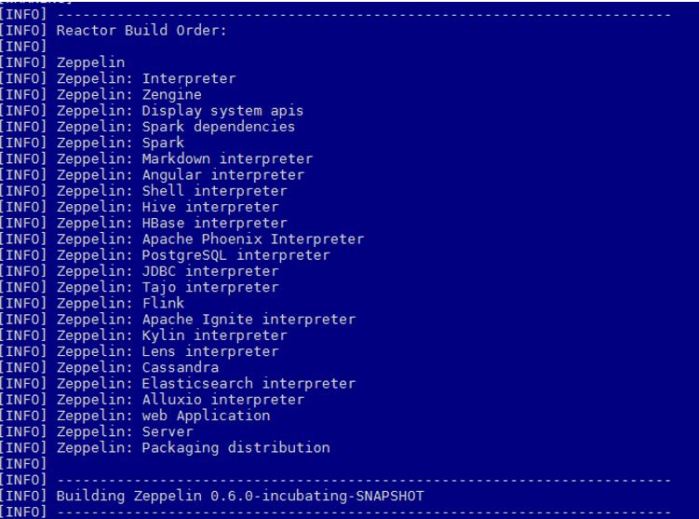
  7. Initial information before build starts
    zeppelin with r build start
    R interpreter is on the list.
  8. Successful build
    zeppelin with r build end
    ZeppelinR is now installed. The next step is configuration.

Configuring ZeppelinR

  1. Copying and modifying hive-site.xml (as root). From Hive’s con folder, copy the hive-site.conf file to $ZEPPELIN_HOME/conf.
    sudo cp /etc/hive/conf/hive-site.xml $ZEPPELIN_HOME/conf/
  2. Change the owner of the file to zeppelin:zeppelin.
    sudo chown zeppelin:zeppelin $ZEPPELIN_HOME/conf/hive-site.xml
  3. Log in as zeppelin and modify the hive-site.xml file.
    vi $ZEPPELIN_HOME/conf/hive-site.xml

    remove “s” from the value of properties hive.metastore.client.connect.retry.delay and
    hive.metastore.client.socket.timeout to avoid a number format exception.

  4. Create folder for Zeppelin pid.
    mkdir $ZEPPELIN_HOME/run
  5. Create zeppelin-site.xml and zeppelin-env.sh from respective templates.
    cp $ZEPPELIN_HOME/conf/zeppelin-site.xml.template $ZEPPELIN_HOME/conf/zeppelin-site.xml
    cp $ZEPPELIN_HOME/conf/zeppelin-env.sh.template $ZEPPELIN_HOME/conf/zeppelin-env.sh
  6. Open $ZEPPELIN_HOME/conf/zeppelin-env.sh and add:
    export SPARK_HOME=/usr/apache/spark-1.6.0-bin-hadoop2.6
    export HADOOP_CONF_DIR=/etc/hadoop/conf
    export ZEPPELIN_JAVA_OPTS= -Dhdp.version=2.3.4.0-3485
    export ZEPPELIN_LOG_DIR=/var/log/zeppelin
    export ZEPPELIN_PID_DIR=${ZEPPELIN_HOME}/run

    Parameter Dhdp.version should match your Hortonworks distribution version.
    Save and exit the file.

Zeppelin-With-R is now ready for use. Start it by running

$ZEPPELIN_HOME/bin/zeppelin-daemon.sh start

How to configure Zeppelin interpreters is described in this post.


Note!
My experience shows that if you run ZeppelinR as zeppelin user, you will not be able to use spark.r functionalities. The error message I am getting is unable to start device X11cairo. The reason is lack of permissions on certain files within R installation. This is something I still have to figure out. For now running as root does the trick.

http//:zeppelin-server:8080 takes you to the Zeppelin Web UI. How to configure interpreters Spark and Hive is described in this post.

When interpreters are configures, a notebook RInterpreter is available for test.


SparkContext allocates random ports. How to control the port allocation.

When SparkContext is in process of creation, a bunch of random ports are allocated to run the Spark service. This can be annoying when you have security groups to think of.

Note!
A more detailed post on this topic is here.

Here is an example of how random ports are allocated when Spark service is started:

spark ports random

The only sure bet is 4040 (or 404x depending on how many Spark Web UI have been already started).

On Apache Spark website, under Configuration, under Networking, 6 port properties have default value random. These are the properties that have to be tamed.

spark port random printscreen

(The only 6 properties with default value random among all Spark properties)

Solution

Open $SPARK_HOME/conf/spark-defaults.conf:

sudo -u spark vi conf/spark-defaults.conf

The following properties should be added:

spark.blockManager.port    38000
spark.broadcast.port       38001
spark.driver.port          38002
spark.executor.port        38003
spark.fileserver.port      38004
spark.replClassServer.port 38005

I have picked port range 38000-38005 for my Spark services.

If I run Spark service now, the ports in use are now as defined in the configuration file:

spark ports tamed

Building Apache Zeppelin 0.6.0 on Spark 1.5.2 & 1.6.0 in a cluster mode

I have Ubuntu 14.04 Trusty and a multinode Hadoop cluster. Hadoop distribution is Hortonworks 2.3.4. Spark is installed through Ambari Web UI and running version is 1.5.2 (upgraded to 1.6.0).

I am going to explain how I built and set up Apache Zeppelin 0.6.0 on Spark 1.5.2 and 1.6.0

Prerequisities

Non root account

Apache Zeppelin creators recommend not to use root account. For this service, I have created a new user zeppelin.

Java 7

Zeppelin uses Java 7. My system has Java 8, so I have installed Java 7 just for Zeppelin. Installation is in the following directory done as user zeppelin.

/home/zeppelin/prerequisities/jdk1.7.0_79

JAVA_HOME is added to the user’s bashrc.

export JAVA_HOME=/home/zeppelin/prerequisities/jdk1.7.0_79

Zeppelin log directory

Create zeppelin log directory.

sudo mkdir /var/log/zeppelin

Change ownership.

sudo chown zeppelin:zeppelin /var/log/zeppelin

If this is not done, Zeppelin’s log files are written in folder logs right in the current folder.

Clone and Build

Log in as user zeppelin and go to users home directory.

/home/zeppelin

Clone the source code from github.

git clone https://github.com/apache/incubator-zeppelin.git incubator-zeppelin

Zeppelin has a home now.

/home/zeppelin/incubator-zeppelin

Go into Zeppelin home and build Zeppelin

mvn clean package -Pspark-1.5 -Dspark.version=1.5.2 -Dhadoop.version=2.7.1 -Phadoop-2.6 -Pyarn -DskipTests

Build order.
zeppelin build start

7:31 minutes later, Zeppelin is successfully built.
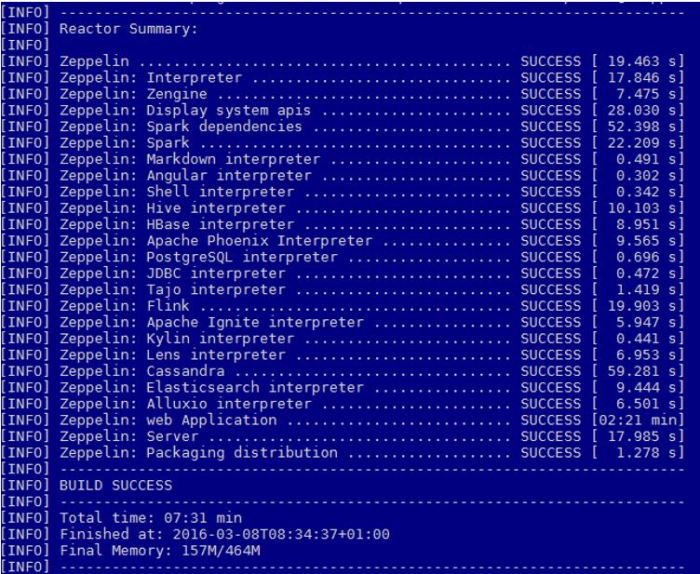
zeppelin build success

Note!

If you try with something like the following 2 examples:

mvn clean package -Pspark-1.5 -Dspark.version=1.5.0 -Dhadoop.version=2.7.1 -Phadoop-2.7 -Pyarn -DskipTests
mvn clean package -Pspark-1.5 -Dspark.version=1.5.2 -Dhadoop.version=2.7.1 -Phadoop-2.7 -Pyarn –DskipTests

Build will succeed, but this warning will appear at the bottom of Build report:

[WARNING] The requested profile “hadoop-2.7” could not be activated because it does not exist.

Hadoop version mentioned in the maven execution must be 2.6 even though actual Hadoop version is 2.7.x.

hive-site.xml

Copy hive-site.xml from hive folder (this is done on Hortonworks distribution, users using other distribution should check where the file is located).

sudo cp /etc/hive/conf/hive-site.xml $ZEPPELIN_HOME/conf

Change ownership of the file.

sudo chown zeppelin:zeppelin $ZEPPELIN_HOME/conf/hive-site.xml

zeppelin-env.sh

Go to Zeppelin home and create zeppelin-env.sh by using the template in conf directory.

cp conf/zeppelin-env.sh.template conf/zeppelin-env.sh

Open it and add the following variables:

export JAVA_HOME=/home/zeppelin/prerequisities/jdk1.7.0_79
export HADOOP_CONF_DIR=/etc/hadoop/conf
export ZEPPELIN_JAVA_OPTS="-Dhdp.version=2.3.4.0-3485"
export ZEPPELIN_LOG_DIR=/var/log/zeppelin

The variable in the third line depends on the Hortonworks build. Find your hdp version by executing

hdp-select status hadoop-client

If your Hortonworks version is 2.3.4, the output is:

hadoop-client – 2.3.4.0-3485

Zeppelin daemon

Start Zeppelin from Zeppelin home

./bin/zeppelin-daemon.sh start

Status after starting the daemon:

zeppelin start

One can check if service is up:

./bin/zeppelin-daemon.sh status

Status:

zeppelin status

Zeppelin can be restarted in the following way:

./bin/zeppelin-daemon.sh restart

Status:

zeppelin restart

Stopping Zeppelin:

./bin/zeppelin-daemon.sh stop

Status:

zeppelin stop

Configuring interpreters in Zeppelin

Apache Zeppelin comes with many default interpreters. It is also possible to create your own interpreters. How to configure default Spark and Hive interpreters is covered in this post.

Adding new DataNode to the cluster using Ambari

I am going to add one DataNode to my existing cluster. This is going to be done in Ambari. My Hadoop ditribution is Hortonworks.

Work on the node

Adding new node to the cluster affects all the existing nodes – they should know about the new node and the new node should know about the existing nodes. In this case, I am using /etc/hosts to keep nodes “acquainted” with each other.

My only source of truth for /etc/hosts is on Ambari server. From there I run scripts that update the /etc/hosts file on other nodes.

  1.  Open the file.
    sudo vi /etc/hosts
  2. Add a new line to it and save the file. In Ubuntu, this takes immediate effect.

    10.0.XXX.XX     t-datanode02.domain       t-datanode02

  3. Running the script to update the cluster.
    As per now, I have one line per node in the script, as shown below. it is on my to-do list to create a loop that would read from original /etc/hosts and update the cluster.
    So the following line is added to the existing lines in the script.

    cat /etc/hosts | ssh ubuntu@t-datanode02 -i /home/ubuntu/.ssh/key "sudo sh -c 'cat > /etc/hosts'";
  4. Updating the system on the new node
    I tend to run this from Ambari. If multiple nodes are added, I run a script.

    ssh -i /home/ubuntu/.ssh/key ubuntu@t-datanode02 'sudo apt-get update -y && sudo apt-get upgrade -y'
  5. Adjusting maximum number of open files and processes.
    Since this is a DataNode we are adding, number of open files and processes has to be adjusted.
    Open the limits.conf file on the node.

    sudo vi /etc/security/limits.conf
  6. Add the following two lines at the end of the file

    *                –       nofile          32768
    *                –       nproc           65536

  7. Save the file, exit the CLI and log in again.
  8. The changes can be seen by typing the following command.
    ulimit -a

    Output is the following:

    core file size          (blocks, -c) 0
    data seg size           (kbytes, -d) unlimited
    scheduling priority             (-e) 0
    file size               (blocks, -f) unlimited
    pending signals                 (-i) 257202
    max locked memory       (kbytes, -l) 64
    max memory size         (kbytes, -m) unlimited
    open files                      (-n) 32768
    pipe size            (512 bytes, -p) 8
    POSIX message queues     (bytes, -q) 819200
    real-time priority              (-r) 0
    stack size              (kbytes, -s) 8192
    cpu time               (seconds, -t) unlimited
    max user processes              (-u) 65536
    virtual memory          (kbytes, -v) unlimited
    file locks                      (-x) unlimited

Work from Ambari

  1. Log in to Ambari, click on Hosts and choose Add New Hosts from the Actions menu.
    ambari-add-new-host
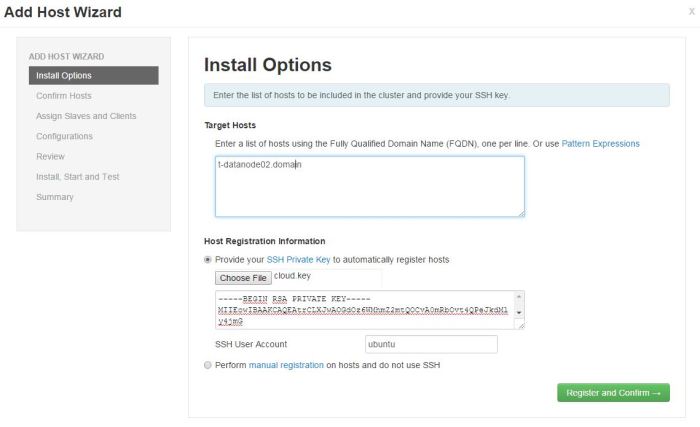
  2. In step Install Options, add the node that is soon to become a DataNode.
    Hortonworks warns against using anything than FQDN as Target Hosts!

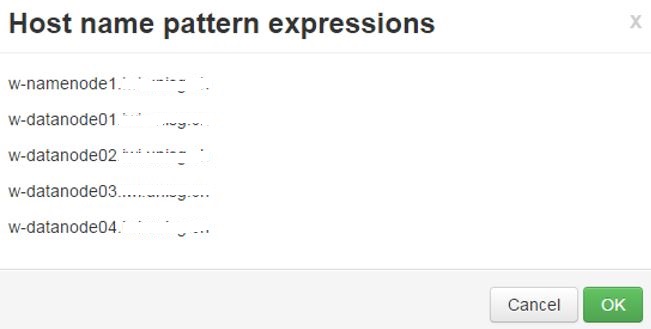
    If multiple nodes are added in this step, they can be written one per line. If there is a numerical pattern in the names of the nodes , Pattern Expressions can be used.
    Example nodes:
    datanode01
    datanode02
    datanode03
    Writing this in one line with Pattern Expressions:
    datanode[01-03]
    Worry not, Ambari will ask you to confirm the host names if you have used Pattern Expressions:ambari-pattern-expression-example
    (This is a print screen from one of my earlier cluster installations)Private key has to be defined and SSH User Account is by default root, but that will not work. In my case, I am using Ubuntu, so the user is ubuntu.
    ambari-new-host-install-options
    Now I can click Register and Confirm.
  3. In the Confirm Hosts step, Ambari server connects to the new node using SSH, it registers the new node to the cluster and installs Ambari Agent in order to keep control over it.Registering phase:
    ambari-new-host-registering-status
    New node has been registered successfully:
    ambari-new-host-success-status
    If anything else but this message is shown, click on the link to check the results. The list of checks performed is shown and everything should be in order before continuing (Earlier versions had a problem if ntpd or snappy was not installed/started, for example).
    ambari-new-host-check-passed
    All good in the hood here so I can continue with the installation.
  4. In step Assign Slaves and Clients I define my node to be a DataNode and has a NodeManager installed as well (if you are running Apache Storm, Supervisor is also an option).
    ambari-new-host-assign-slaves-clientsClick next.
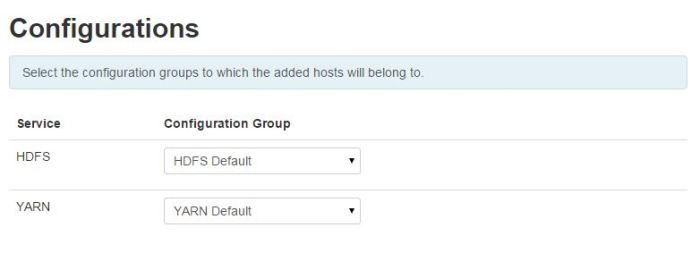
  5. In step Configurations, there is not much to do, unless you operate with more than one Configuration Group.
    ambari-new-host-configurationsClick Next.
  6. In step Review, one can just doublecheck if everything is as planned.
    Click deploy if everything is as it should be.
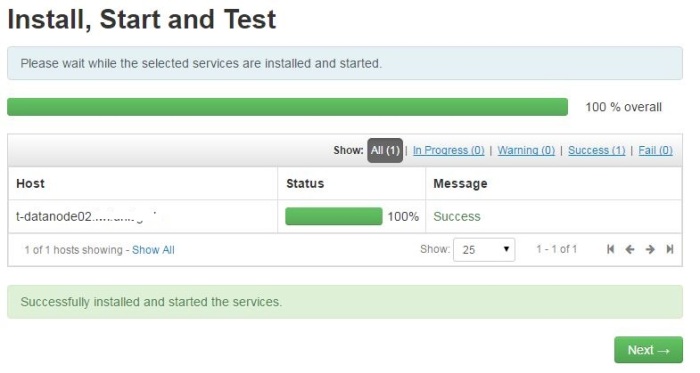
  7. Step Install, Start and Test is the last step. After everything is installed, new DataNode has joined the cluster.Here is how this should look like:
    ambari-new-host-install-successClick Next.
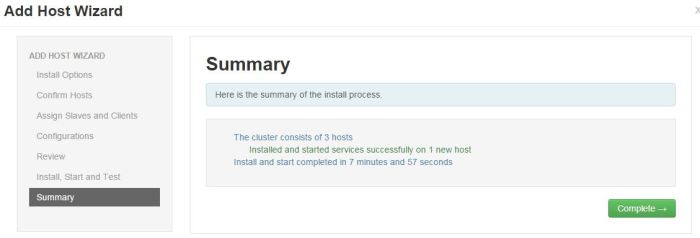
  8. Final step – Summary – gives a status update.ambari-new-host-summaryClick on Complete and list of installed Hosts will load.

Installing Flume on Hortonworks cluster using Ambari

Add Flume in Ambari

  1. Click on Aded Service from the Ambari interface.
    flume-add service
  2. Flume service available in HDP is 1.5.2. Choose this service to be installed.
    flume-available version
  3. Pick where to install the Flume service. In this case, Flume is added to the namenode. The services can be moved to another node by using Ambari.
    flume-choose node
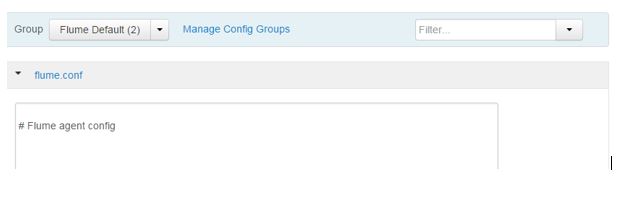
  4. In step Customize Services, Flume agent can be configured. This can be done after the service is installed. For now, let it be empty.
    flume-agent config
  5. In step Review, click on Deploy
    flume-deploy
  6. After the install, the service is started and tested. If everything goes well, the green progress bar shows up
    flume-install start and test
  7. The summary warns you that some services would have to be restarted so that Flume can function properly. This is a generic message. In case of installing only Flume, no restart of existing services is needed.
    flume-summary

Work in Linux

  1. User flume is added automatically by Ambari and it belongs to group hadoop.
    flume-linux group

Work in HDFS

  1. In order for user flume to work properly on HDFS, flume folder has to be created under /user in HDFS. For example, in case of deleting files in HDFS as user flume, deleted files are moved to /user/flume.Create /user/flume in HDFS.
    sudo -u hdfs hadoop fs -mkdir /user/flume

    Give ownership to user flume.

    sudo -u hdfs hadoop fs -chown flume /user/flume

    Give read, write and execute to flume and flume’s HDFS group – hdfs.

    sudo -u flume hadoop fs -chmod 770 /user/flume


Installing R on Hadoop cluster to run sparkR

The environment

Ubuntu 14.04 Trusty is the operating system. Hortonworks Hadoop distribution is used to install the multinode cluster.

The following process of installation has been successful for the following versions:

  • Spark 1.4.1
  • Spark 1.5.2
  • Spark 1.6.0

Prerequisities

This post assumes Spark is already installed on the system. How this can be done is explained in one of my posts here.

Setting up sparkR

If command sparkR ($SPARK_HOME/bin/sparkR) is run right after Spark installation is complete, the following error is returned:

env: R: No such file or directory

R packages have to be installed on all nodes in order for sparkR to work properly. Spark 1.6 Technical Preview on Hortonworks website gives us the link on how to set up R on Linux (Installing R on Linux). I experienced the process to be different.

Again, this process should be done on all nodes.

  1. The Ubuntu archives on CRAN are signed with the key of “Michael Rutter marutter@gmail.com” with key ID E084DAB9 (link)
    sudo apt-key adv --keyserver keyserver.ubuntu.com --recv-keys E084DAB9
  2. Now add the key to apt.
    gpg -a --export E084DAB9 | sudo apt-key add -
  3. Fetch Linux codename
    LVERSION=`lsb_release -c | cut -c 11-`

    In this case, it is trusty.

  4. From Cran – Mirrors or CRAN Mirrors US, find a suitable CRAN mirror and use it in the next step. In this case, a CRAN mirror from Austria is used – cran.wu.ac.at.
  5. Append the repository to the system’s sources.list file
    echo deb https://cran.wu.ac.at/bin/linux/ubuntu $LVERSION/ | sudo tee -a /etc/apt/sources.list
    

    The line added to the sources.list should look something like this:

    deb https://cran.wu.ac.at/bin/linux/ubuntu trusty/

  6. Update the system
    sudo apt-get update
  7. Install r-base package
    sudo apt-get install r-base -y
  8. Install r-base-dev package
    sudo apt-get install r-base-dev -y
  9. In order to avoid the following warn when Spark service is started:

    WARN shortcircuit.DomainSocketFactory: The short-circuit local reads feature cannot be used because libhadoop cannot be loaded.

    Add the following export to the system environment file:

    export LD_LIBRARY_PATH=/usr/hdp/current/hadoop-client/lib/native
  10. Test the installation by starting R
    R

    Something like this should show up and R should start.

    R version 3.2.3 (2015-12-10) — “Wooden Christmas-Tree”

  11. Exit R.
    q()

R is now installed on the first node. Steps 1 to 7 should be repeated on all nodes in the cluster.

Testing sparkR

If R is installed on all nodes (I haven’t mentioned that yet in this post), we can test it from the node where Spark client is installed:

cd $SPARK_HOME
./bin/sparkR

Hello message from Spark invites the user to the sparkR environment.

sparkR-hello-window

Output when starting SparkR

R version 3.2.3 (2015-12-10) — “Wooden Christmas-Tree”
Copyright (C) 2015 The R Foundation for Statistical Computing
Platform: x86_64-pc-linux-gnu (64-bit)

R is free software and comes with ABSOLUTELY NO WARRANTY.
You are welcome to redistribute it under certain conditions.
Type ‘license()’ or ‘licence()’ for distribution details.

Natural language support but running in an English locale

R is a collaborative project with many contributors.
Type ‘contributors()’ for more information and
‘citation()’ on how to cite R or R packages in publications.

Type ‘demo()’ for some demos, ‘help()’ for on-line help, or
‘help.start()’ for an HTML browser interface to help.
Type ‘q()’ to quit R.

Launching java with spark-submit command /usr/hdp/2.3.4.0-3485/spark/bin/spark-submit “sparkr-shell” /tmp/RtmpN1gWPL/backend_port18f039dadb86
16/02/22 22:12:40 WARN SparkConf: The configuration key ‘spark.yarn.applicationMaster.waitTries’ has been deprecated as of Spark 1.3 and and may be removed in the future. Please use the new key ‘spark.yarn.am.waitTime’ instead.
16/02/22 22:12:41 WARN SparkConf: The configuration key ‘spark.yarn.applicationMaster.waitTries’ has been deprecated as of Spark 1.3 and and may be removed in the future. Please use the new key ‘spark.yarn.am.waitTime’ instead.
16/02/22 22:12:41 INFO SparkContext: Running Spark version 1.5.2
16/02/22 22:12:41 WARN NativeCodeLoader: Unable to load native-hadoop library for your platform… using builtin-java classes where applicable
16/02/22 22:12:41 WARN SparkConf: The configuration key ‘spark.yarn.applicationMaster.waitTries’ has been deprecated as of Spark 1.3 and and may be removed in the future. Please use the new key ‘spark.yarn.am.waitTime’ instead.
16/02/22 22:12:41 INFO SecurityManager: Changing view acls to: ubuntu
16/02/22 22:12:41 INFO SecurityManager: Changing modify acls to: ubuntu
16/02/22 22:12:41 INFO SecurityManager: SecurityManager: authentication disabled; ui acls disabled; users with view permissions: Set(ubuntu); users with modify permissions: Set(ubuntu)
16/02/22 22:12:42 INFO Slf4jLogger: Slf4jLogger started
16/02/22 22:12:42 INFO Remoting: Starting remoting
16/02/22 22:12:42 INFO Remoting: Remoting started; listening on addresses :[akka.tcp://sparkDriver@10.x.xxx.xxx:59112]
16/02/22 22:12:42 INFO Utils: Successfully started service ‘sparkDriver’ on port 59112.
16/02/22 22:12:42 INFO SparkEnv: Registering MapOutputTracker
16/02/22 22:12:42 WARN SparkConf: The configuration key ‘spark.yarn.applicationMaster.waitTries’ has been deprecated as of Spark 1.3 and and may be removed in the future. Please use the new key ‘spark.yarn.am.waitTime’ instead.
16/02/22 22:12:42 INFO SparkEnv: Registering BlockManagerMaster
16/02/22 22:12:42 INFO DiskBlockManager: Created local directory at /tmp/blockmgr-aeca25e3-dc7e-4750-95c6-9a21c6bc60fd
16/02/22 22:12:42 INFO MemoryStore: MemoryStore started with capacity 530.0 MB
16/02/22 22:12:42 WARN SparkConf: The configuration key ‘spark.yarn.applicationMaster.waitTries’ has been deprecated as of Spark 1.3 and and may be removed in the future. Please use the new key ‘spark.yarn.am.waitTime’ instead.
16/02/22 22:12:42 INFO HttpFileServer: HTTP File server directory is /tmp/spark-009d52a3-de7e-4fa1-bea3-97f3ef34ebbe/httpd-c9182234-dec7-438d-8636-b77930ed5f62
16/02/22 22:12:42 INFO HttpServer: Starting HTTP Server
16/02/22 22:12:42 INFO Server: jetty-8.y.z-SNAPSHOT
16/02/22 22:12:42 INFO AbstractConnector: Started SocketConnector@0.0.0.0:51091
16/02/22 22:12:42 INFO Utils: Successfully started service ‘HTTP file server’ on port 51091.
16/02/22 22:12:42 INFO SparkEnv: Registering OutputCommitCoordinator
16/02/22 22:12:43 INFO Server: jetty-8.y.z-SNAPSHOT
16/02/22 22:12:43 INFO AbstractConnector: Started SelectChannelConnector@0.0.0.0:4040
16/02/22 22:12:43 INFO Utils: Successfully started service ‘SparkUI’ on port 4040.
16/02/22 22:12:43 INFO SparkUI: Started SparkUI at http://10.x.x.108:4040
16/02/22 22:12:43 WARN SparkConf: The configuration key ‘spark.yarn.applicationMaster.waitTries’ has been deprecated as of Spark 1.3 and and may be removed in the future. Please use the new key ‘spark.yarn.am.waitTime’ instead.
16/02/22 22:12:43 WARN MetricsSystem: Using default name DAGScheduler for source because spark.app.id is not set.
16/02/22 22:12:43 INFO Executor: Starting executor ID driver on host localhost
16/02/22 22:12:43 INFO Utils: Successfully started service ‘org.apache.spark.network.netty.NettyBlockTransferService’ on port 41193.
16/02/22 22:12:43 INFO NettyBlockTransferService: Server created on 41193
16/02/22 22:12:43 INFO BlockManagerMaster: Trying to register BlockManager
16/02/22 22:12:43 INFO BlockManagerMasterEndpoint: Registering block manager localhost:41193 with 530.0 MB RAM, BlockManagerId(driver, localhost, 41193)
16/02/22 22:12:43 INFO BlockManagerMaster: Registered BlockManager
16/02/22 22:12:43 WARN SparkConf: The configuration key ‘spark.yarn.applicationMaster.waitTries’ has been deprecated as of Spark 1.3 and and may be removed in the future. Please use the new key ‘spark.yarn.am.waitTime’ instead.

Welcome to
____ __
/ __/__ ___ _____/ /__
_\ \/ _ \/ _ `/ __/ ‘_/
/___/ .__/\_,_/_/ /_/\_\ version 1.5.2
/_/
Spark context is available as sc, SQL context is available as sqlContext
>


If it happens you do not get the prompt displayed:

16/02/22 22:52:12 INFO ShutdownHookManager: Shutdown hook called
16/02/22 22:52:12 INFO ShutdownHookManager: Deleting directory /tmp/spark-009d52a3-de7e-4fa1-bea3-97f3ef34ebbe

Just press Enter.


Possible errors

No public key

W: GPG error: https://cran.wu.ac.at trusty/ Release: The following signatures couldn't be verified because the public key is not available: NO_PUBKEY 51716619E084DAB9

Step 1 was not performed.

Hash Sum mismatch

When updating Ubuntu the following error message shows up:

Hash Sum mismatch

Solution:

sudo rm -rf /var/lib/apt/lists/*
sudo apt-get clean
sudo apt-get update

Resources

1 – Spark 1.6 Technical Preview

2- Installing R on Linux

3 – CRAN – Mirrors

4 – CRAN Secure APT